

A skill is a reusable workflow for an AI agent. Its main SKILL.md file explains when the skill should be used and what the agent should do. A skill may also contain scripts, templates, and other reference materials. The agent may select a skill automatically when a task matches its description, or you can invoke it directly.
This guide demonstrates how to find, review, install, and use skills with an AI-agent extension in VS Code. If you have not yet set up this workspace, follow Set Up Your AI Workspace (macOS) or Set Up Your AI Workspace (Windows) before continuing.
Although interfaces and installation methods may vary, the same basic workflow also applies to other AI agents that support skills.
Installing Skills in VS Code
Installing a Skill through a Skills Platform
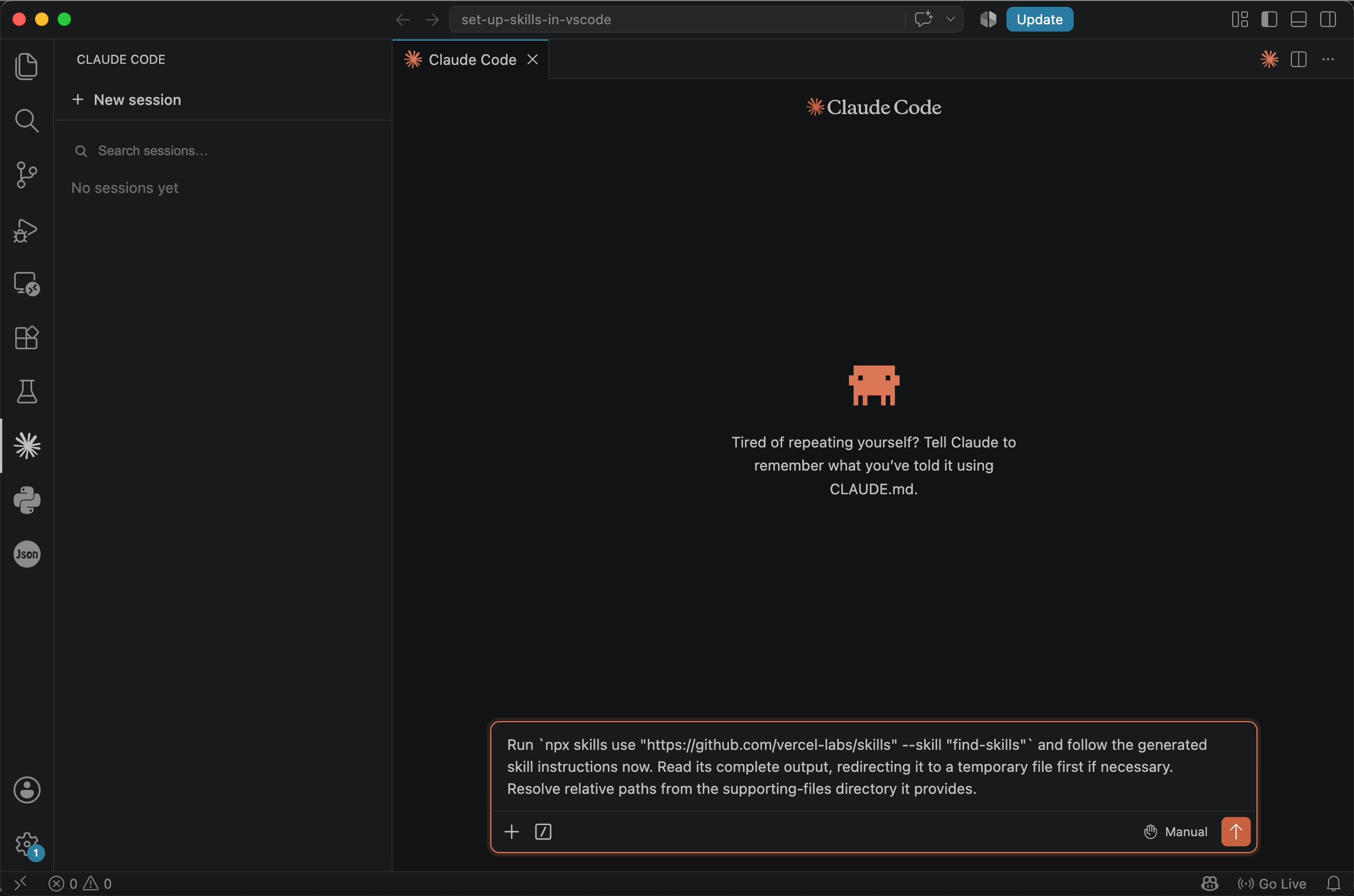
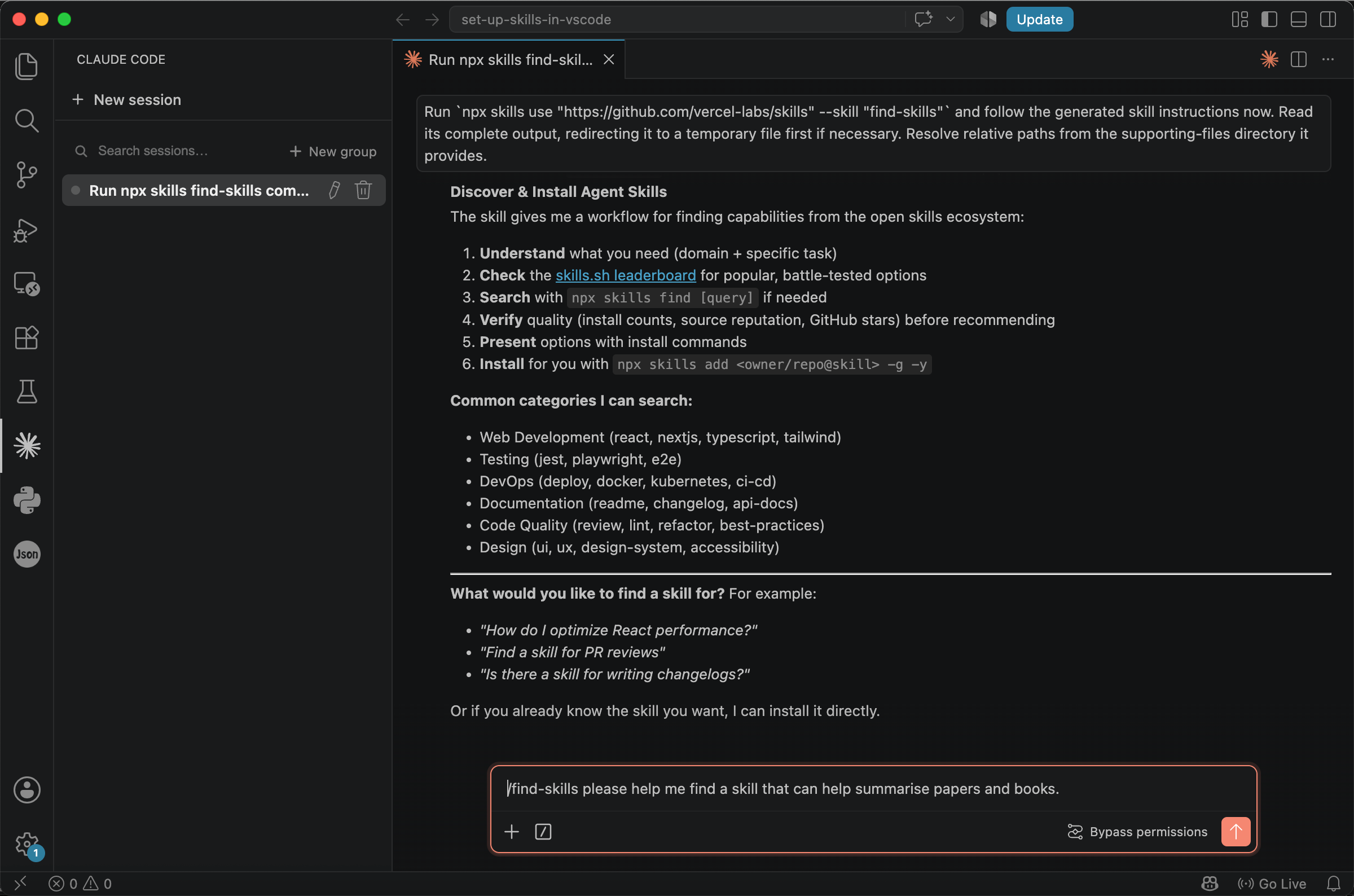
Numerous platforms host skills, so searching for and downloading them is usually straightforward. This section uses https://www.skills.sh/ as an example. The platform provides a skill called find-skills that makes searching more convenient, and its official installation method is to run a specific prompt.
Copy the prompt below into the chat box to install find-skills.
Run `npx skills add https://github.com/vercel-labs/skills -g --skill find-skills` and follow the generated skill instructions now. Read its complete output, redirecting it to a temporary file first if necessary. Resolve relative paths from the supporting-files directory it provides.
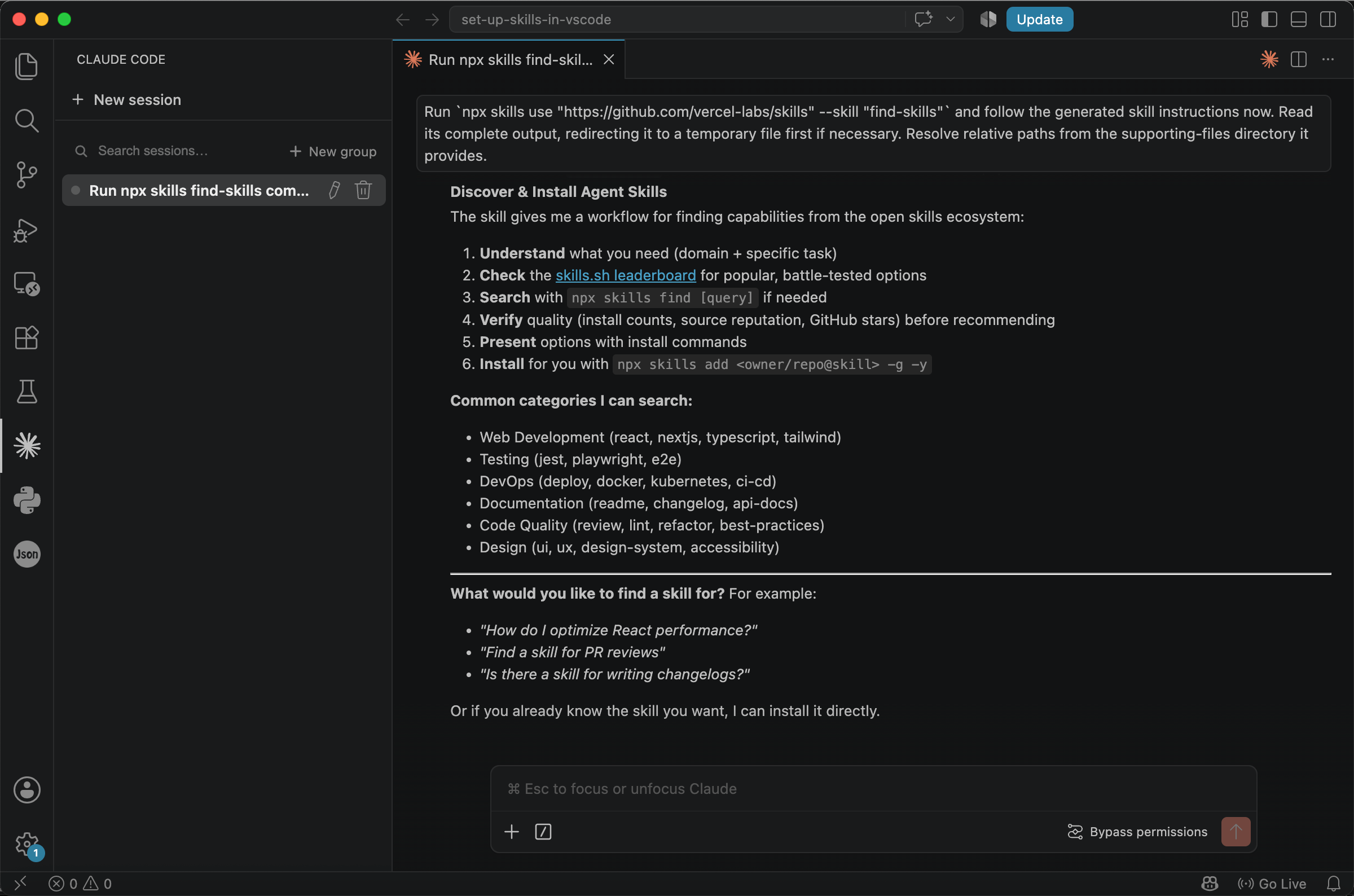
Once installed, you can search for skills through the agent. Ordinary wording still works, but commands such as /find-skills are recommended because they are clearer, faster, and more cost-effective: the model can read the specified skill directly. For example:
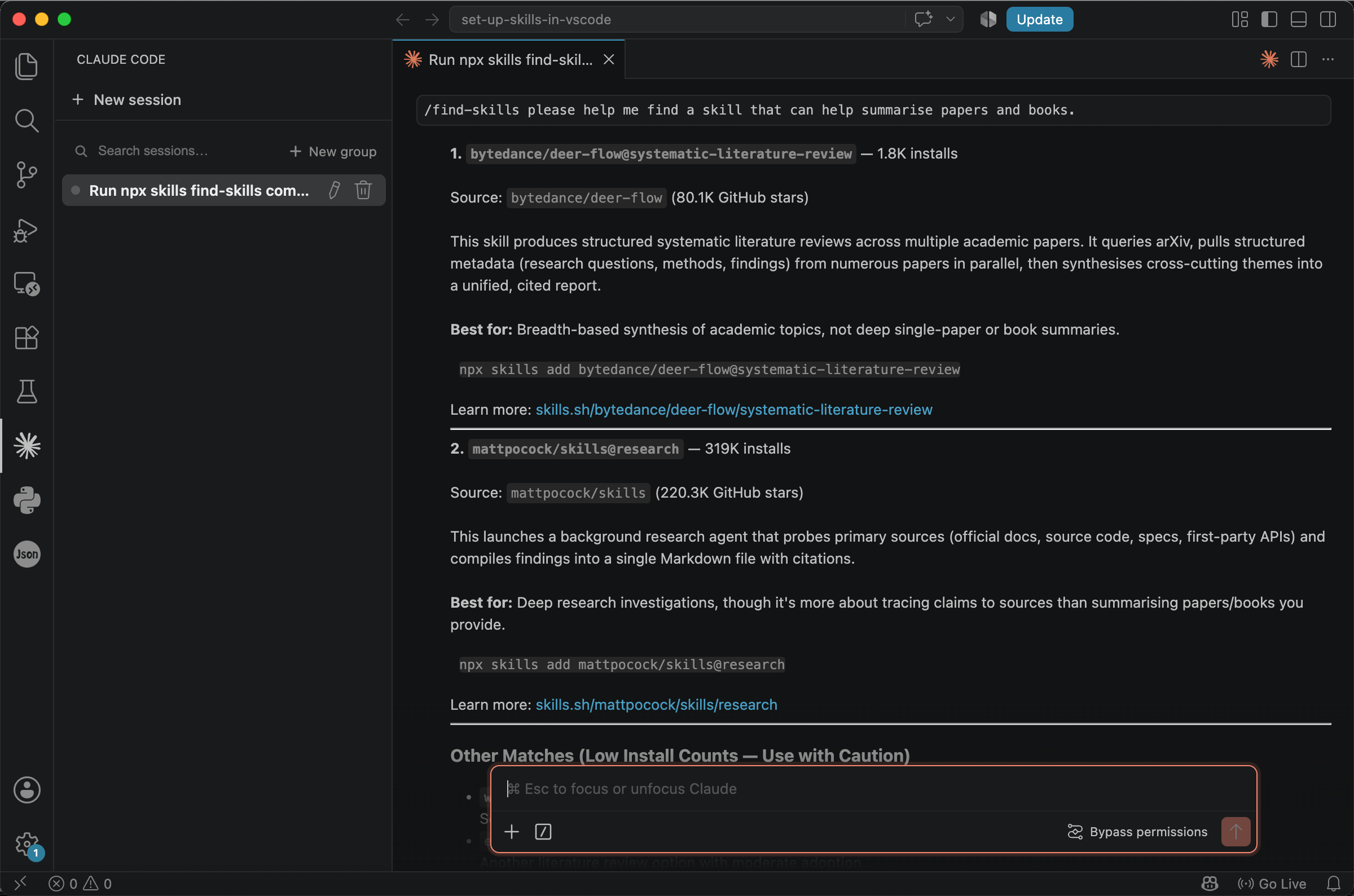
/find-skills please help me find a skill that can help summarise papers and books.
The agent uses the skill and returns a large number of matching results. With so many options, it is not always obvious which one to choose. Useful criteria include installation counts, star ratings, and the description.
Consider the two skills shown below. Both are hosted on GitHub, and the repositories associated with them have attracted substantial attention. The find-skills results also show that the skills have been installed many times.
Star and installation counts can help narrow a long list of options, but they are indicators of popularity rather than guarantees of quality or safety. Before choosing a skill, check whether its description matches your task, review its SKILL.md file, and examine any scripts or permissions it relies on.
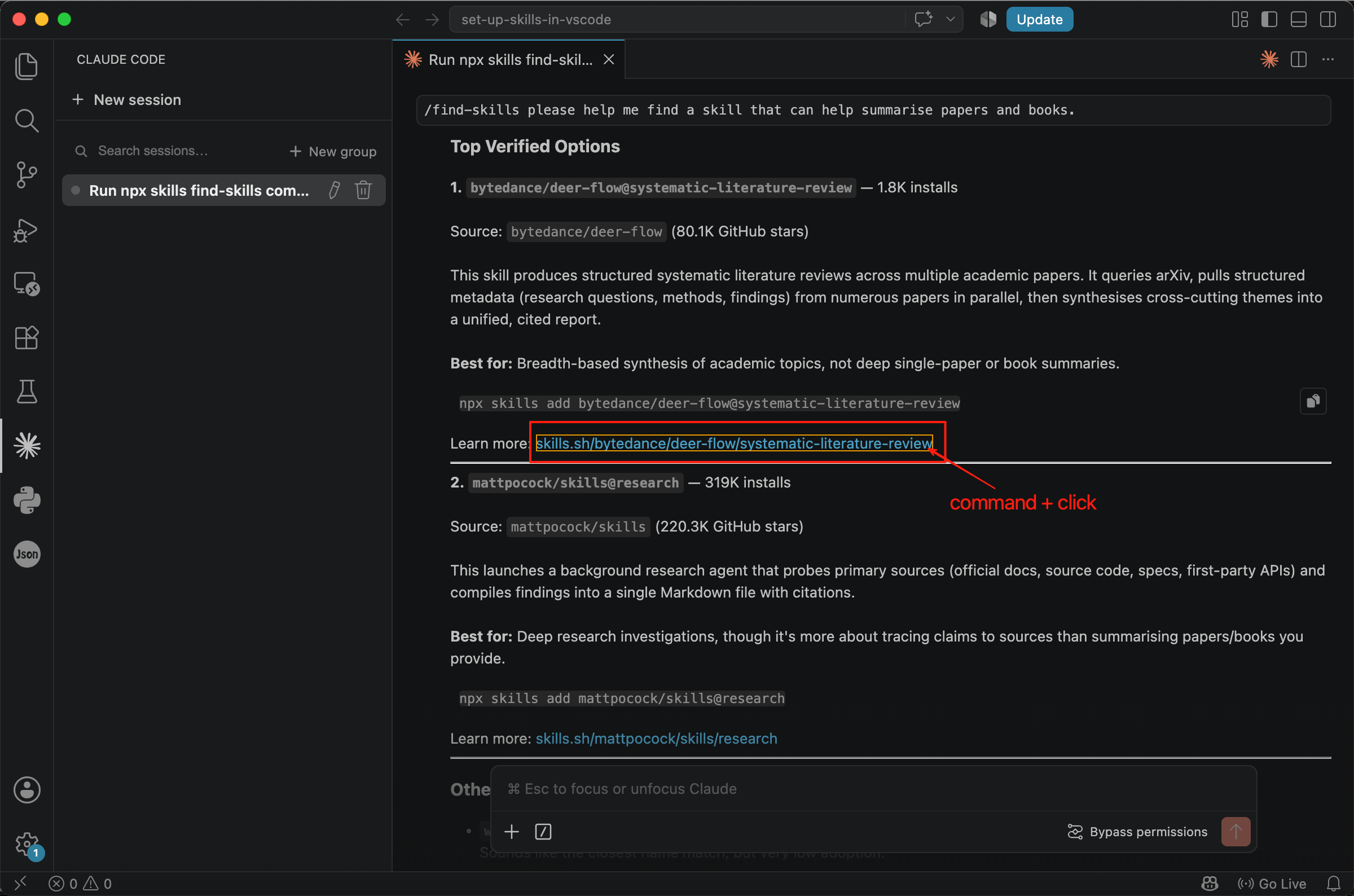
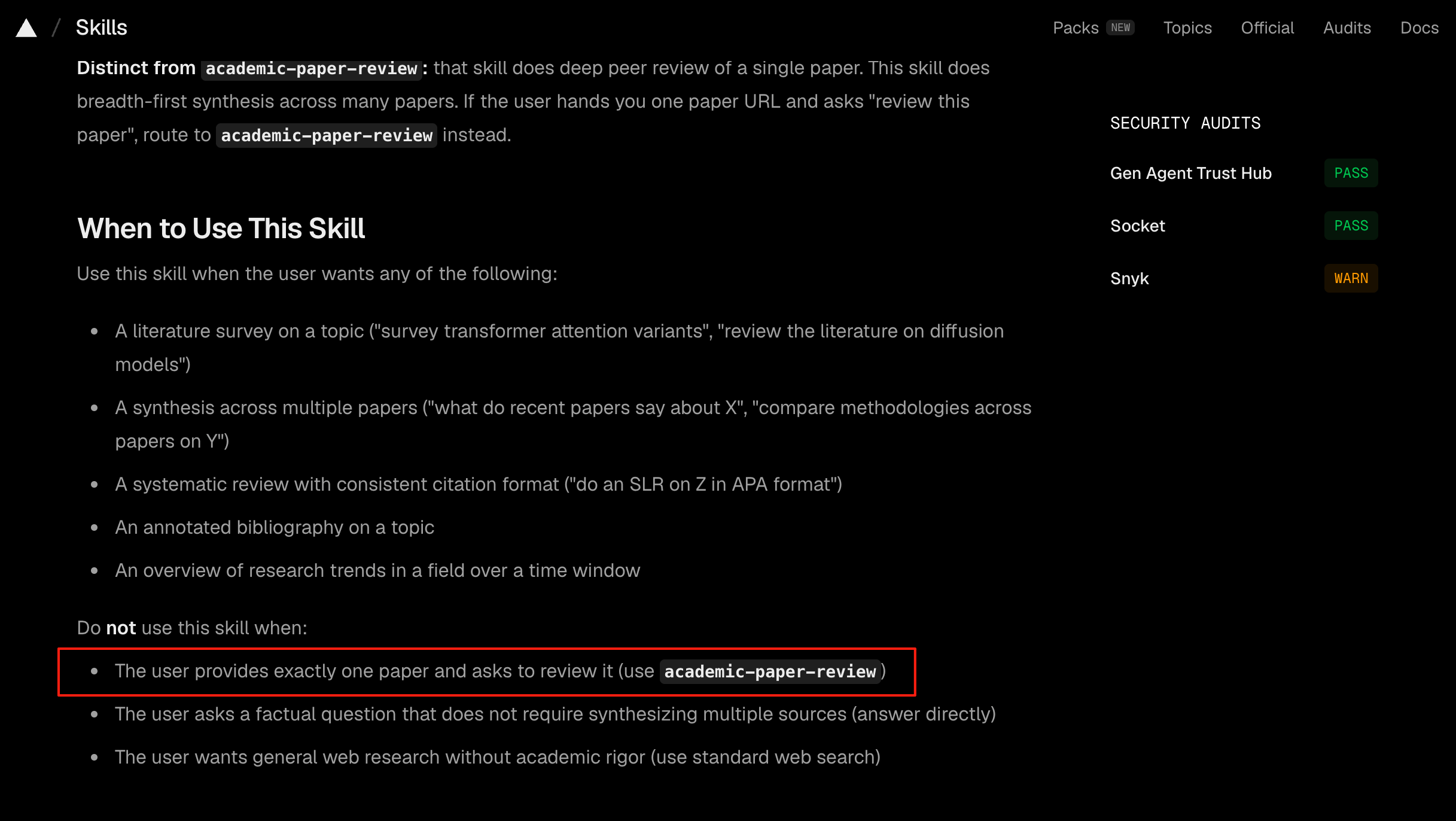
Next, examine the description. You can click the link to learn more about the skill. Read the article that begins with SKILL.md; this is the file mentioned earlier, and it is what enhances your prompts.
The first skill is used to search for and read articles, as well as to write a literature review. The second establishes a primary question and traces claims back to their sources.
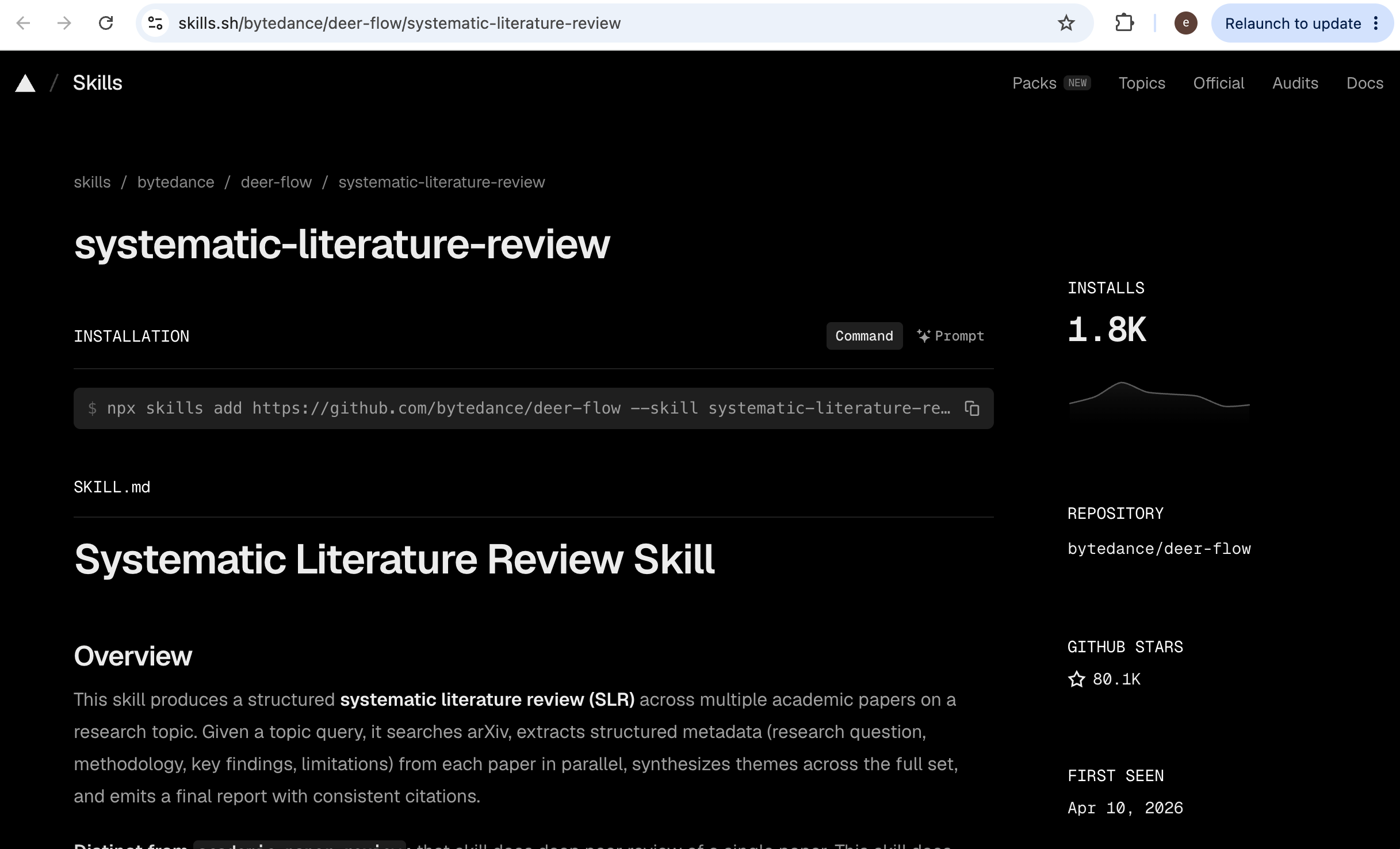
After comparing them, we choose the first one, systematic-literature-review, as our example. The skill can both conduct systematic literature reviews using online sources and summarise papers that you provide.
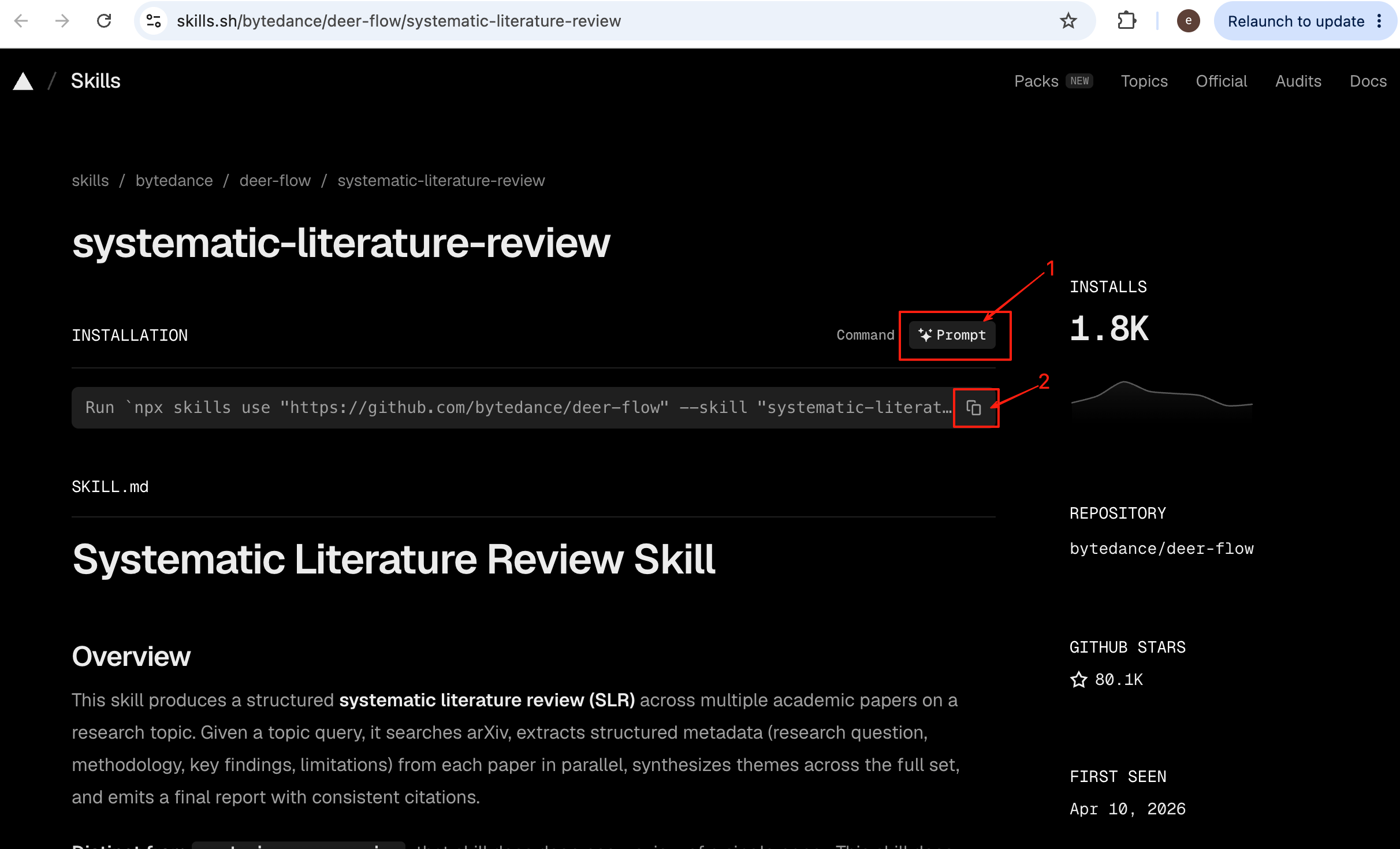
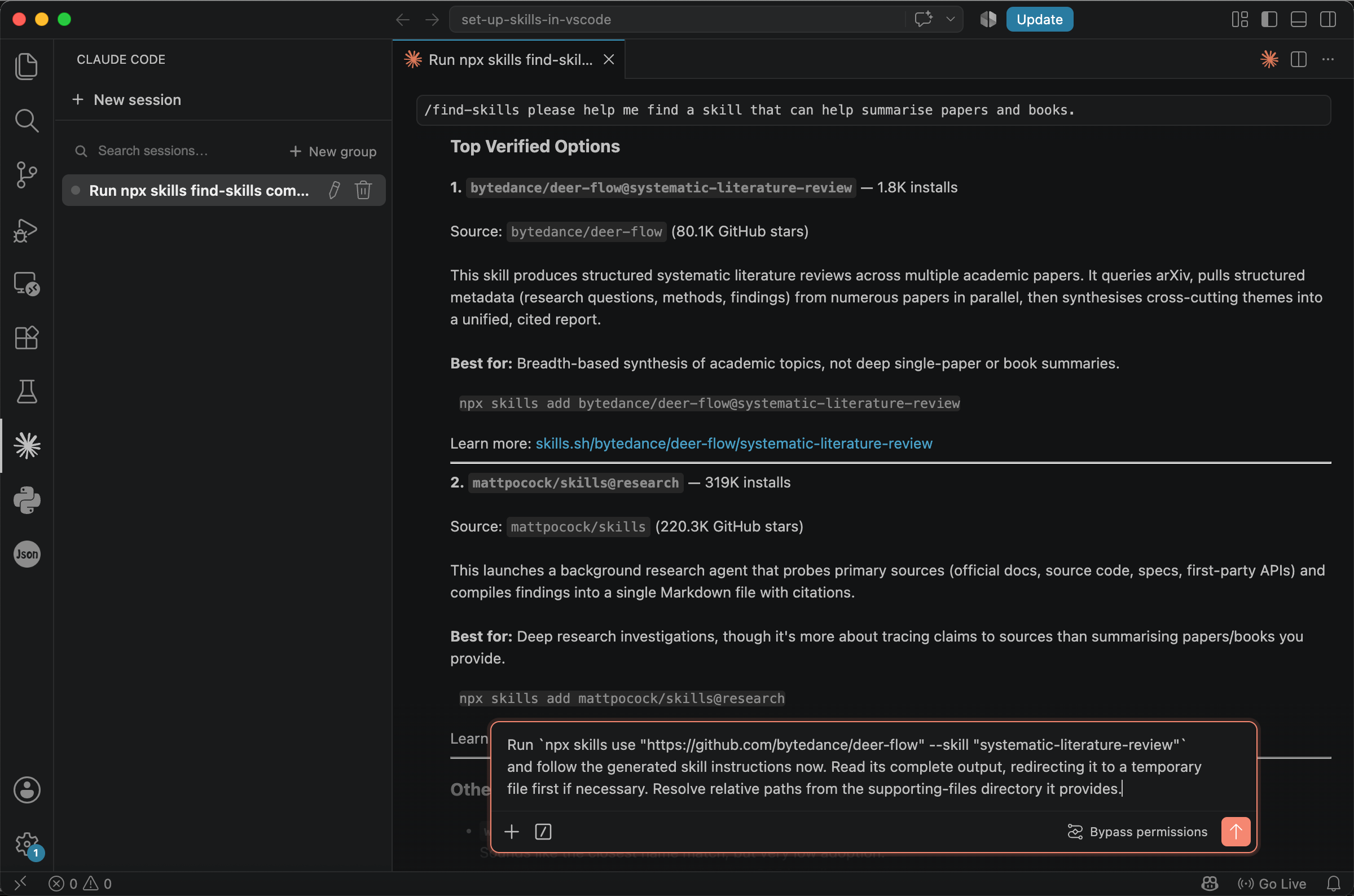
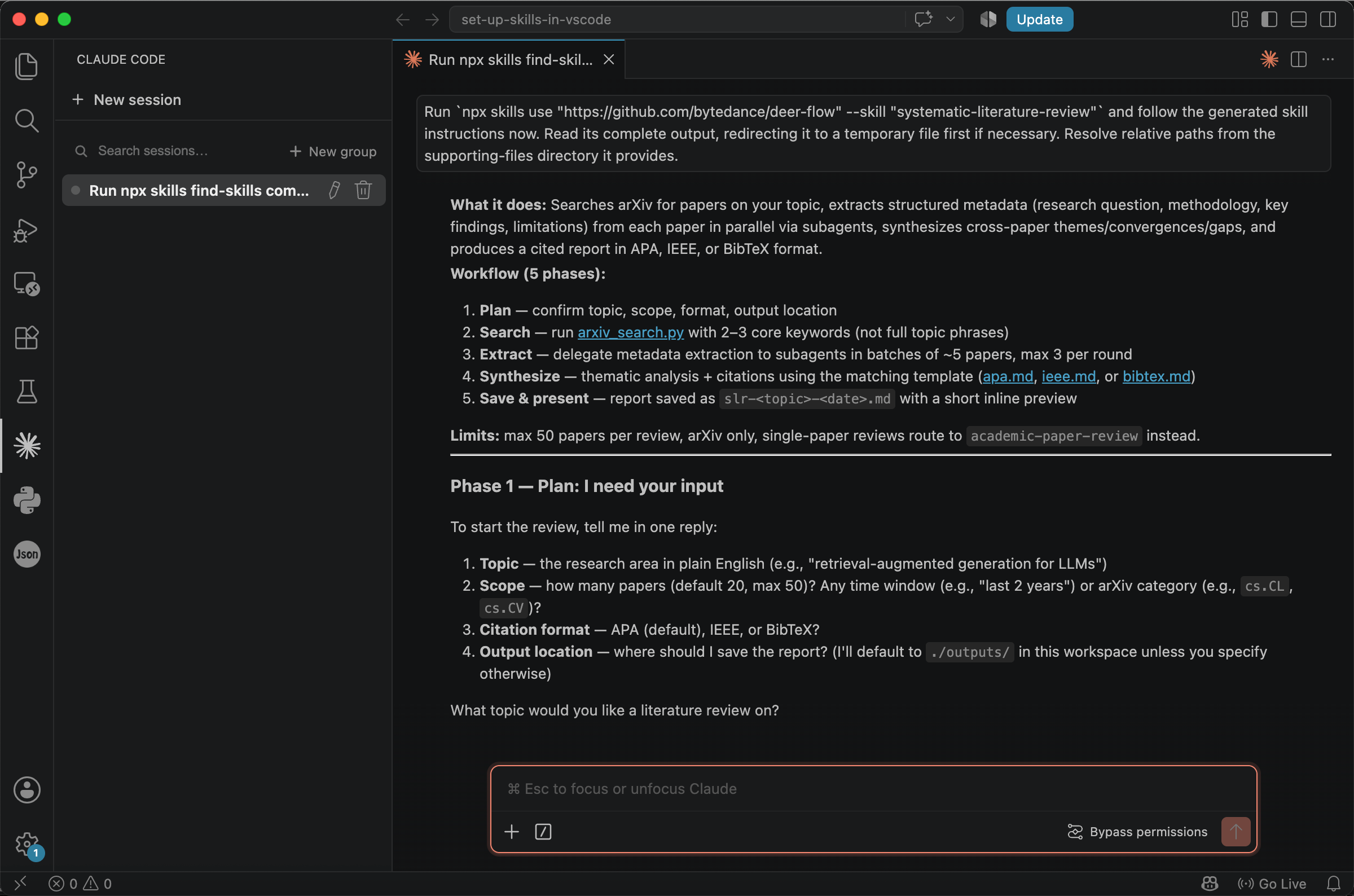
On the published page, click Prompt, copy the command, and paste it into the chat box to install the skill.
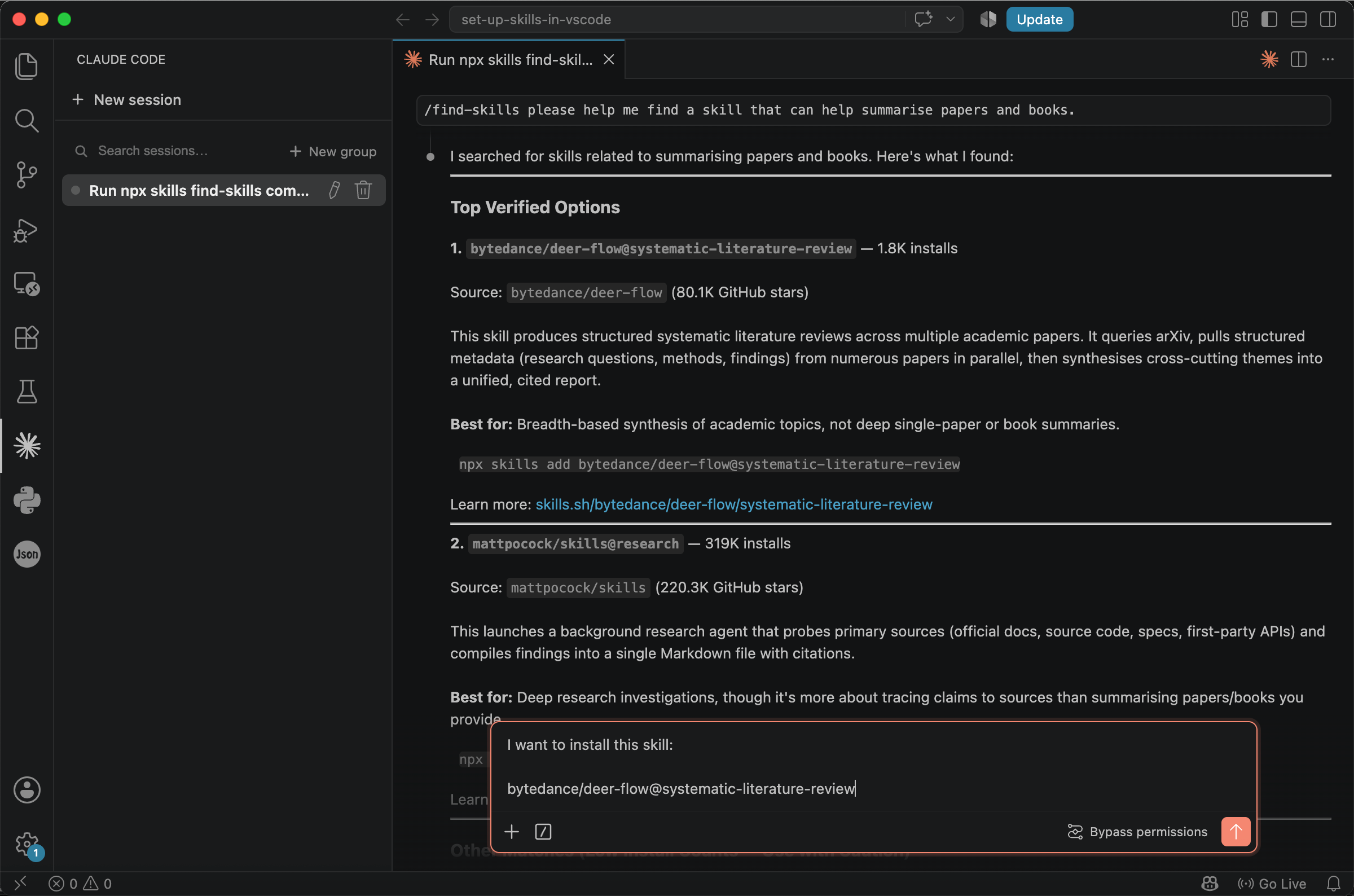
If that feels cumbersome, you can also copy the skill’s name or other identifying information and simply tell AI, ‘I want to install this skill.’
Installing a Skill from a Link or Description
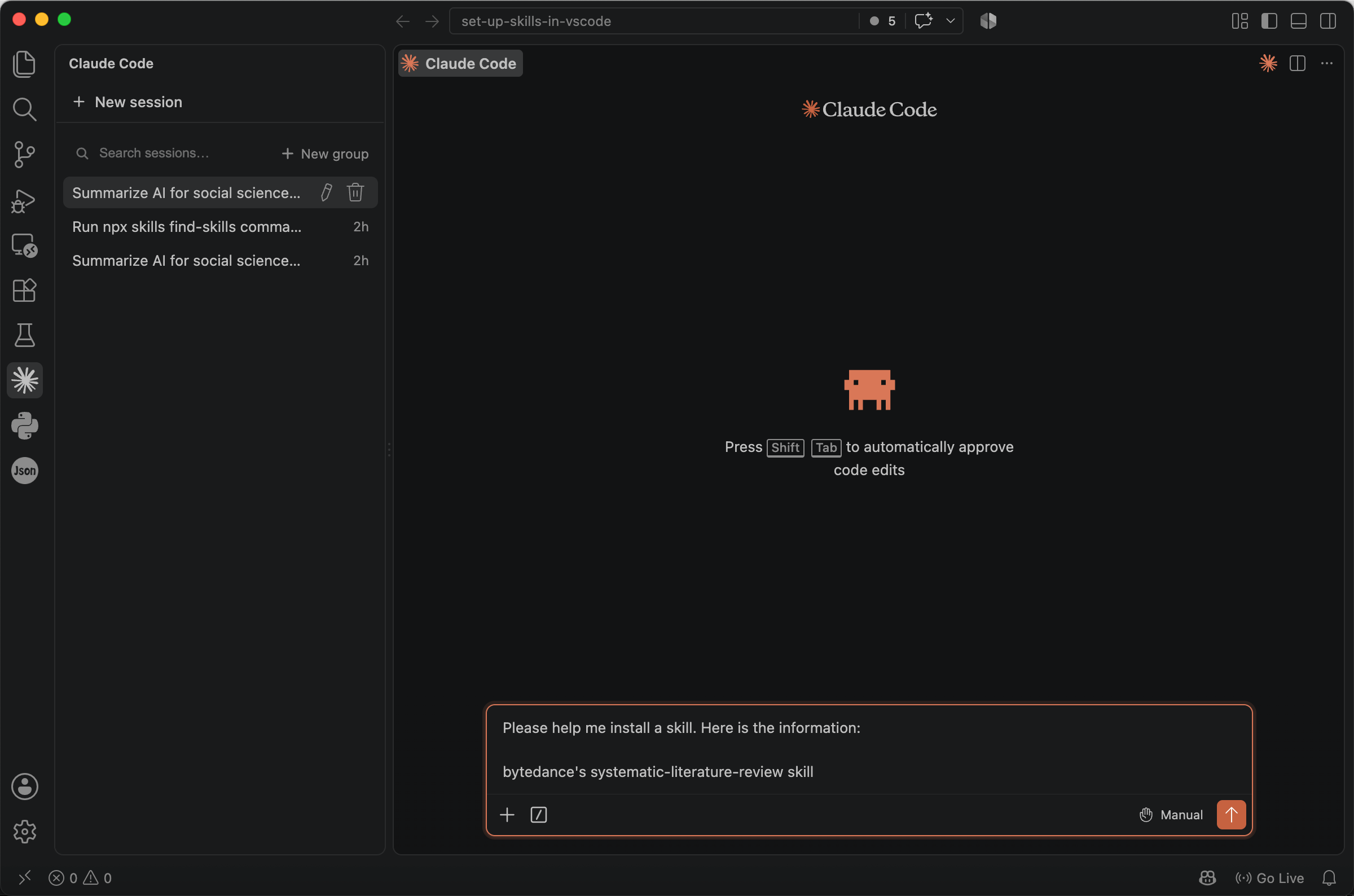
Sometimes others may share a direct link to a skill, such as https://github.com/bytedance/deer-flow/blob/main/skills/public/systematic-literature-review/SKILL.md, or merely give an ambiguous reference such as ‘bytedance’s systematic-literature-review skill’. You may not know where it resides or how to install it.
Thanks to the agent’s search capabilities, you only need to provide as much information as possible and let AI handle the installation. For example:
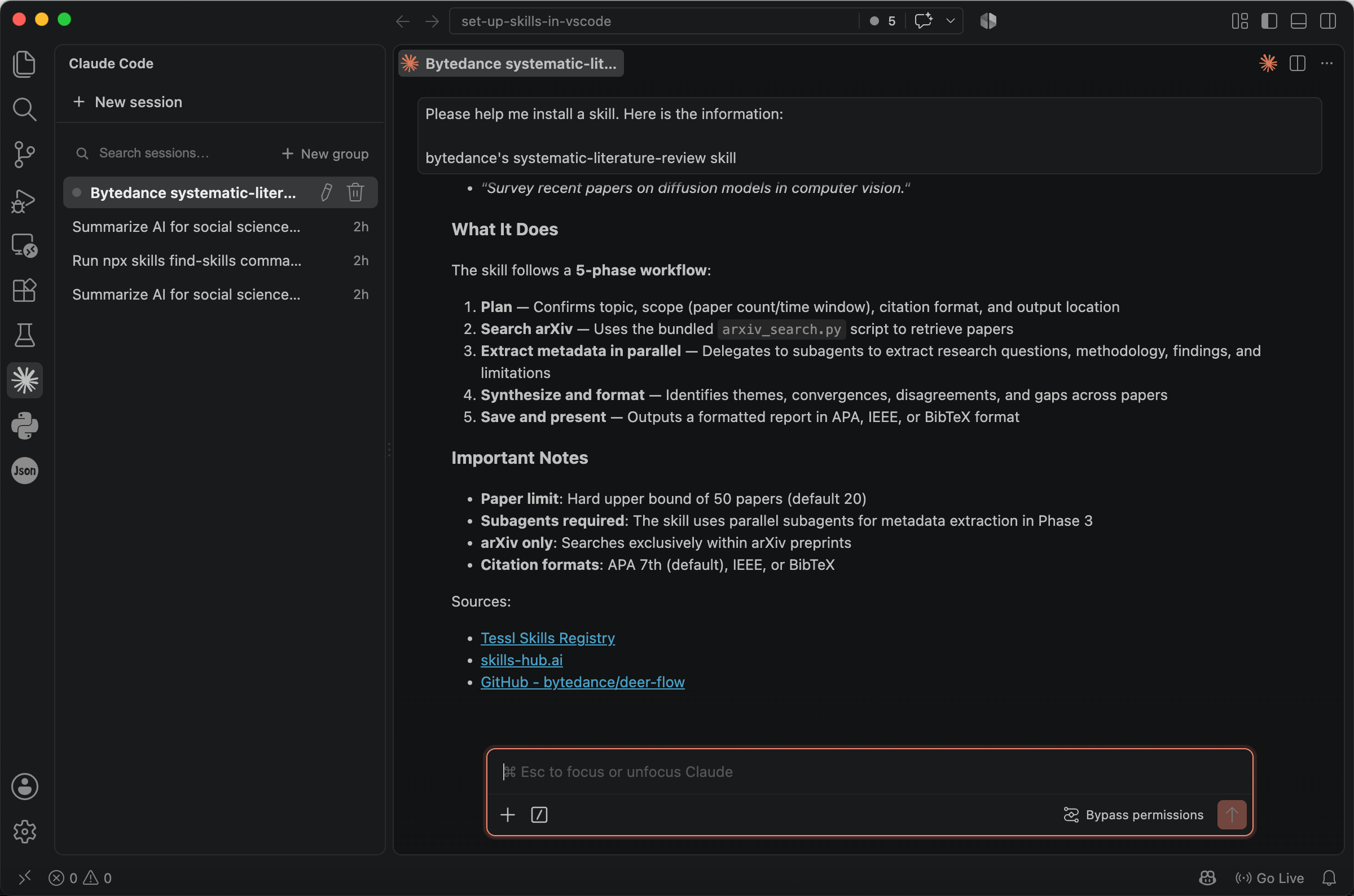
Please help me install a skill. Here is the information:

bytedance's systematic-literature-review skill
Installing a Skill from a Package
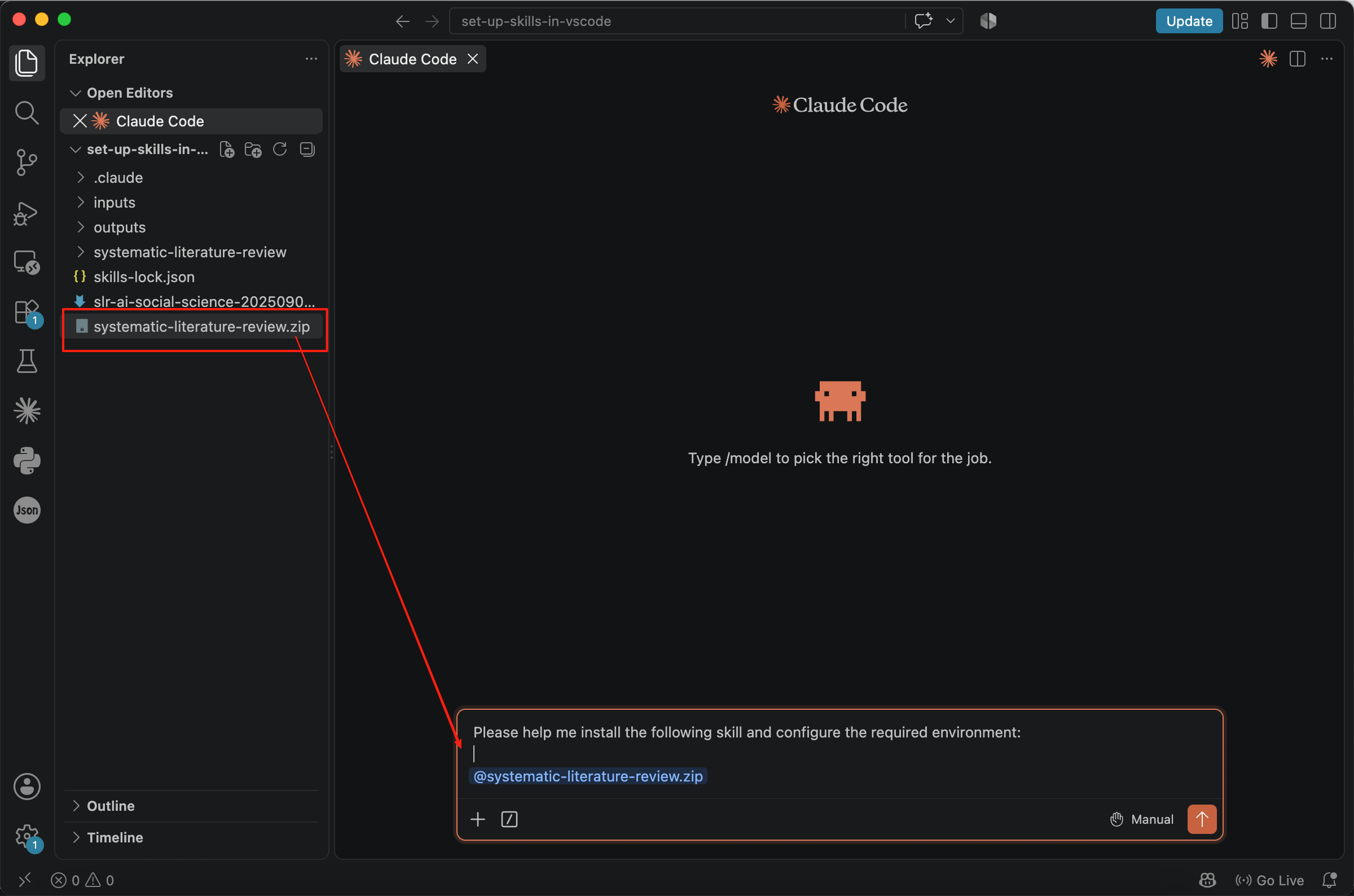
Sometimes you will receive a skill package from someone else. For example, the files may end with extensions such as .zip, .rar, or .7z. We also recommend using the agent to install the skill so that the required environment is configured correctly. For example:
Please help me install the following skill and configure the required environment: @systematic-literature-review.zip
Choosing Where to Install a Skill
Many compatible agents can automatically load a skill when a task matches its description, although the exact triggering behaviour varies between agents. This mechanism can substantially change the prompt context that the model ultimately receives. For example, a user may submit a simple request such as:
Please help me make a literature review for the topic of
"Social Science: Reclaiming Research Sovereignty in the Age of Artificial Intelligence."
After skills are activated, however, the effective prompt may be augmented with one or more skill definitions before the original user input, allowing agents to determine which skill to use:
User's computer has the following skills available:

name: systematic-literature-review

description: Use this skill when the user wants a systematic literature review, survey, ...

name: xxx

description: xxxxx

...

User's input:

Please help me make a literature review for the topic of
"Social Science: Reclaiming Research Sovereignty in the Age of Artificial Intelligence."
If several installed skills cover similar tasks, AI may be unclear about which one should run. Expanding the skill set can also increase the prompt context, making it more expensive and leaving AI with less capacity to process other information. In conclusion, installing too many overlapping skills is not cost-effective.
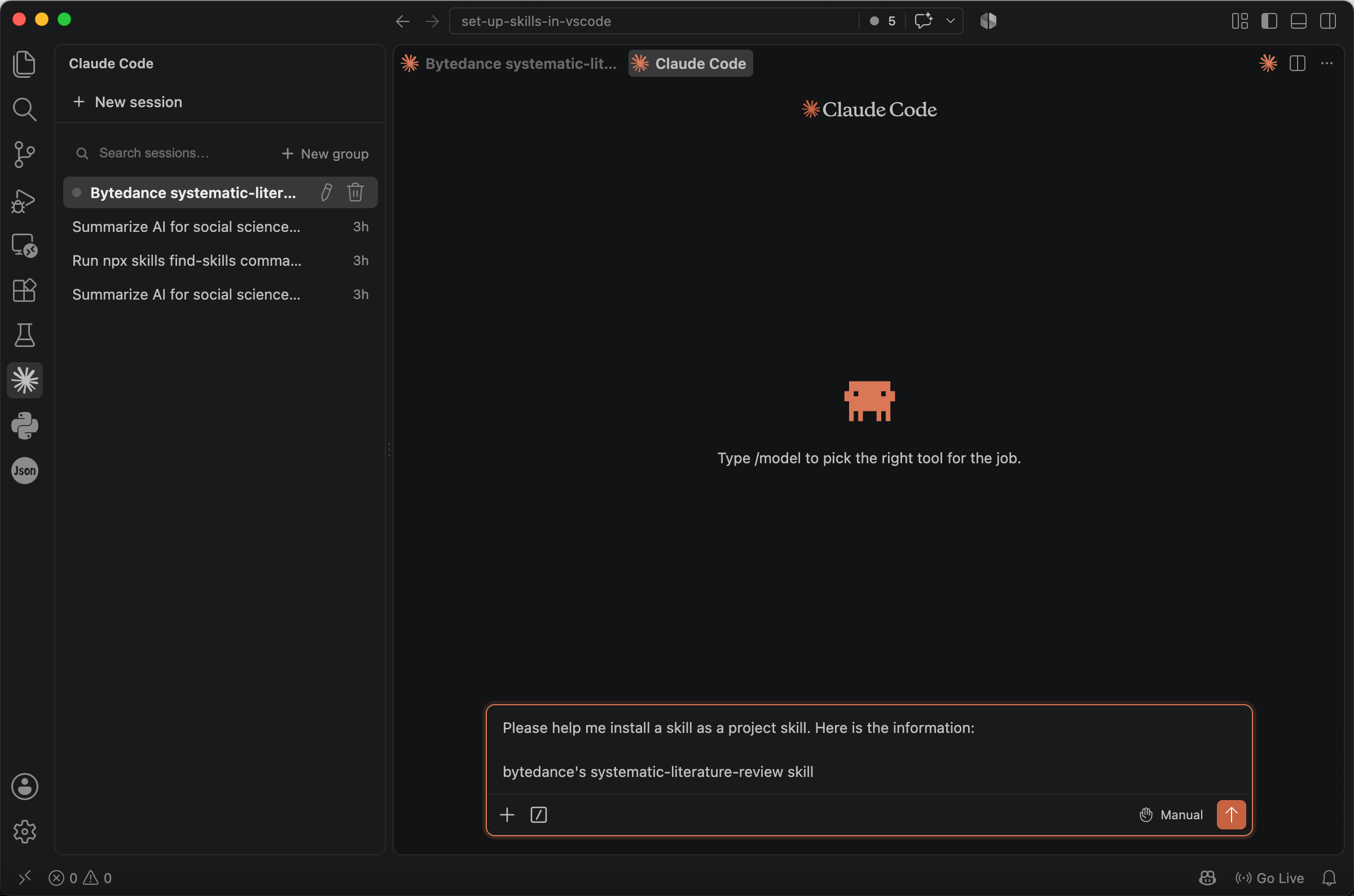
We therefore recommend project-level installation for skills related to a particular body of work. This means that AI can only see the skill within the relevant workspace. If you open another folder, skills installed in the original folder cannot be seen. Only skills that are genuinely useful across unrelated projects should be installed globally.
It is easy to ask an agent to install a skill, but you should state the intended scope explicitly.
Please help me install a skill **as a project skill**. Here is the information:

bytedance's systematic-literature-review skill
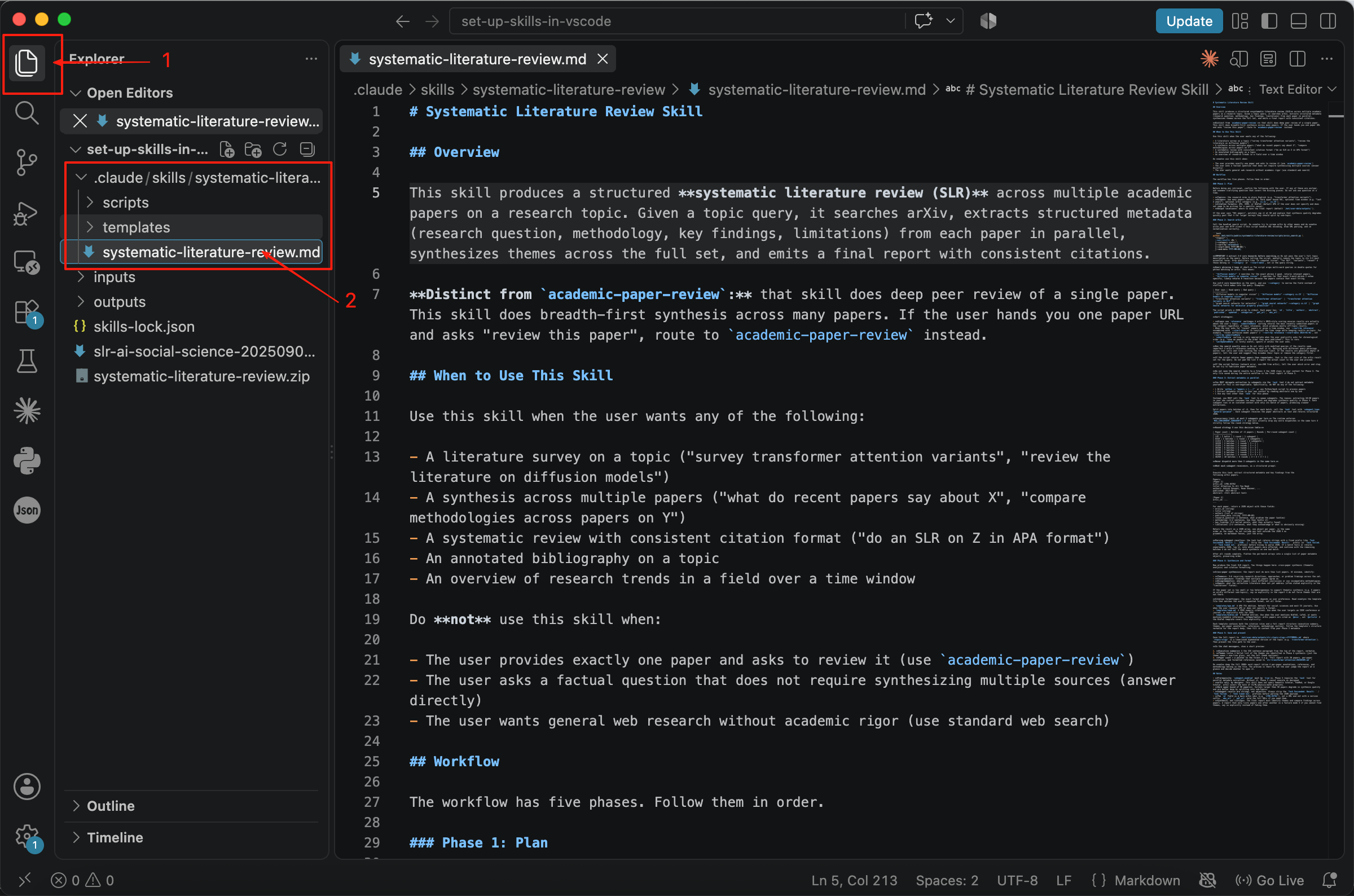
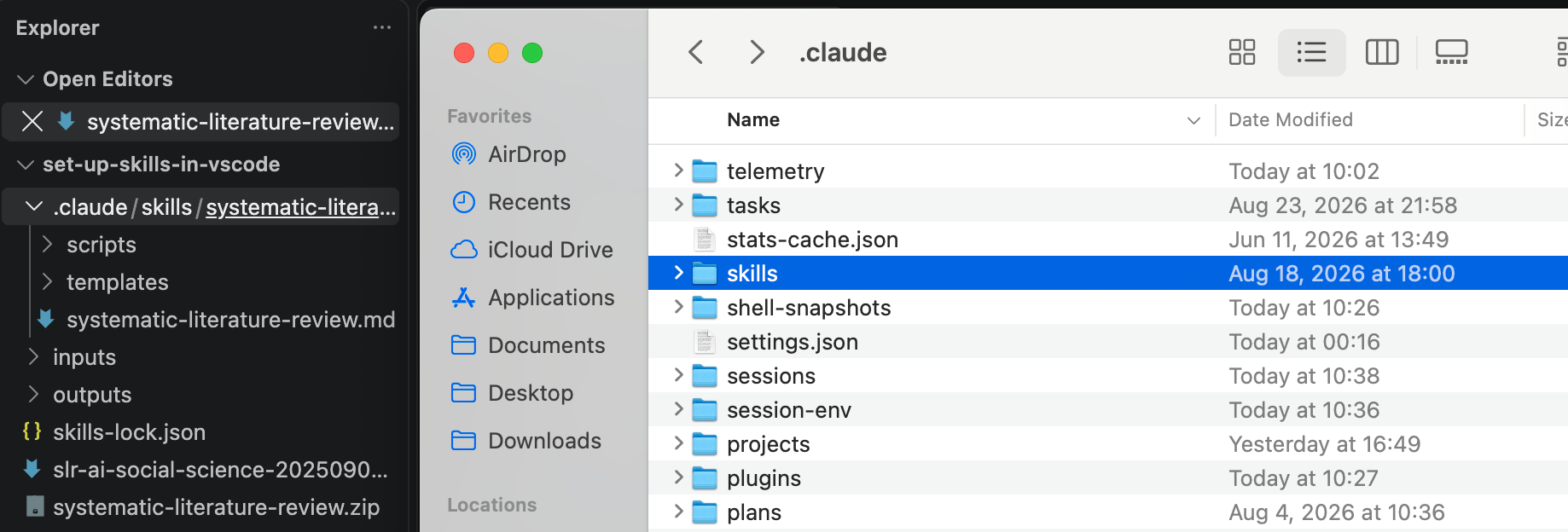
After installation, we can find this skill in the Explorer. Its path is .claude/skills/systematic-literature-review. Agents can recognise skills in folders of this type, although some may use .agent/skills/ instead, and can load them automatically.
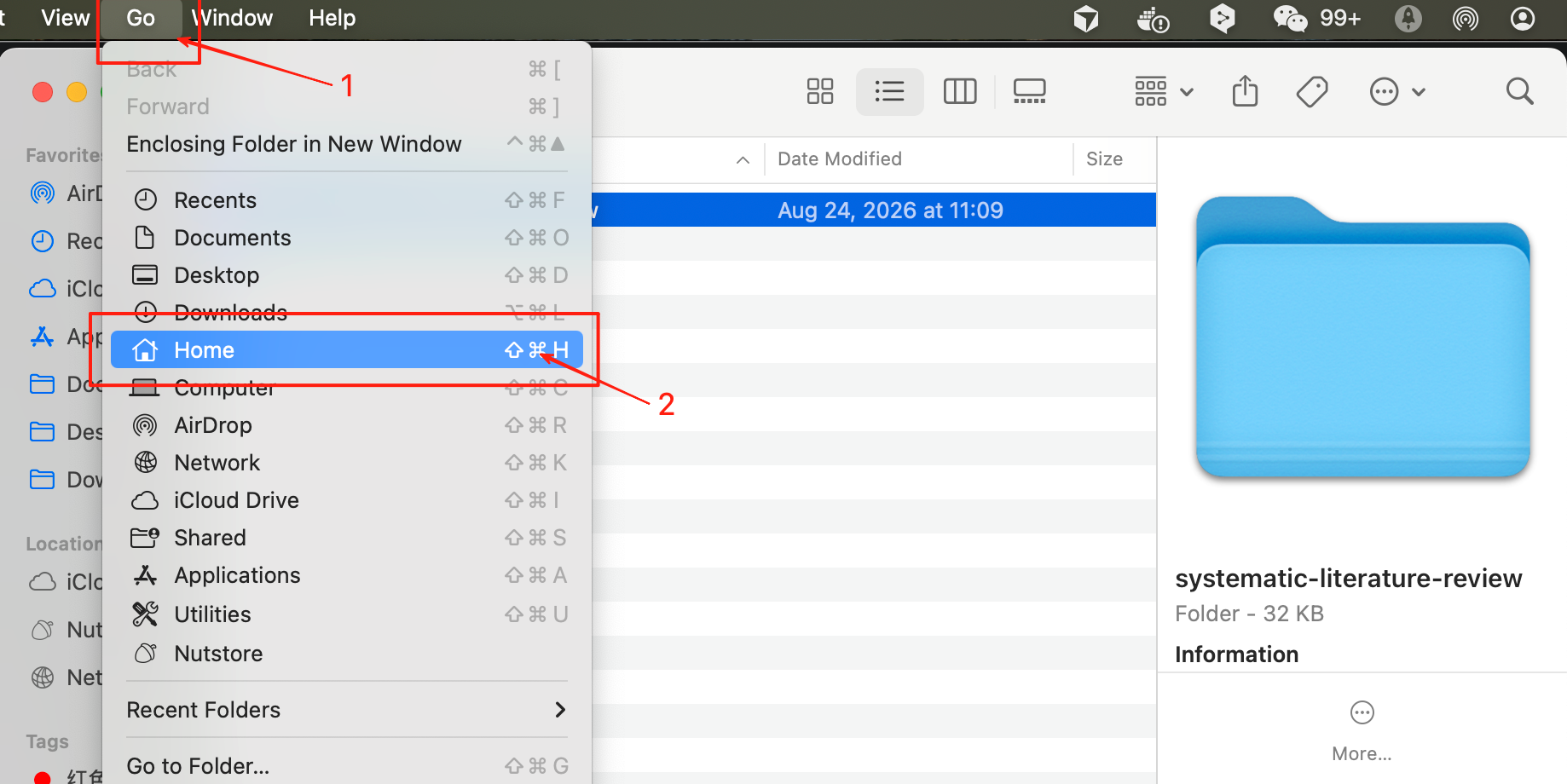
After learning the location of the project skill, you may wonder where global skills are stored. Open Finder and click Go -> Home.
If you’re using Windows, C:\Users\[your user name] is your home directory.
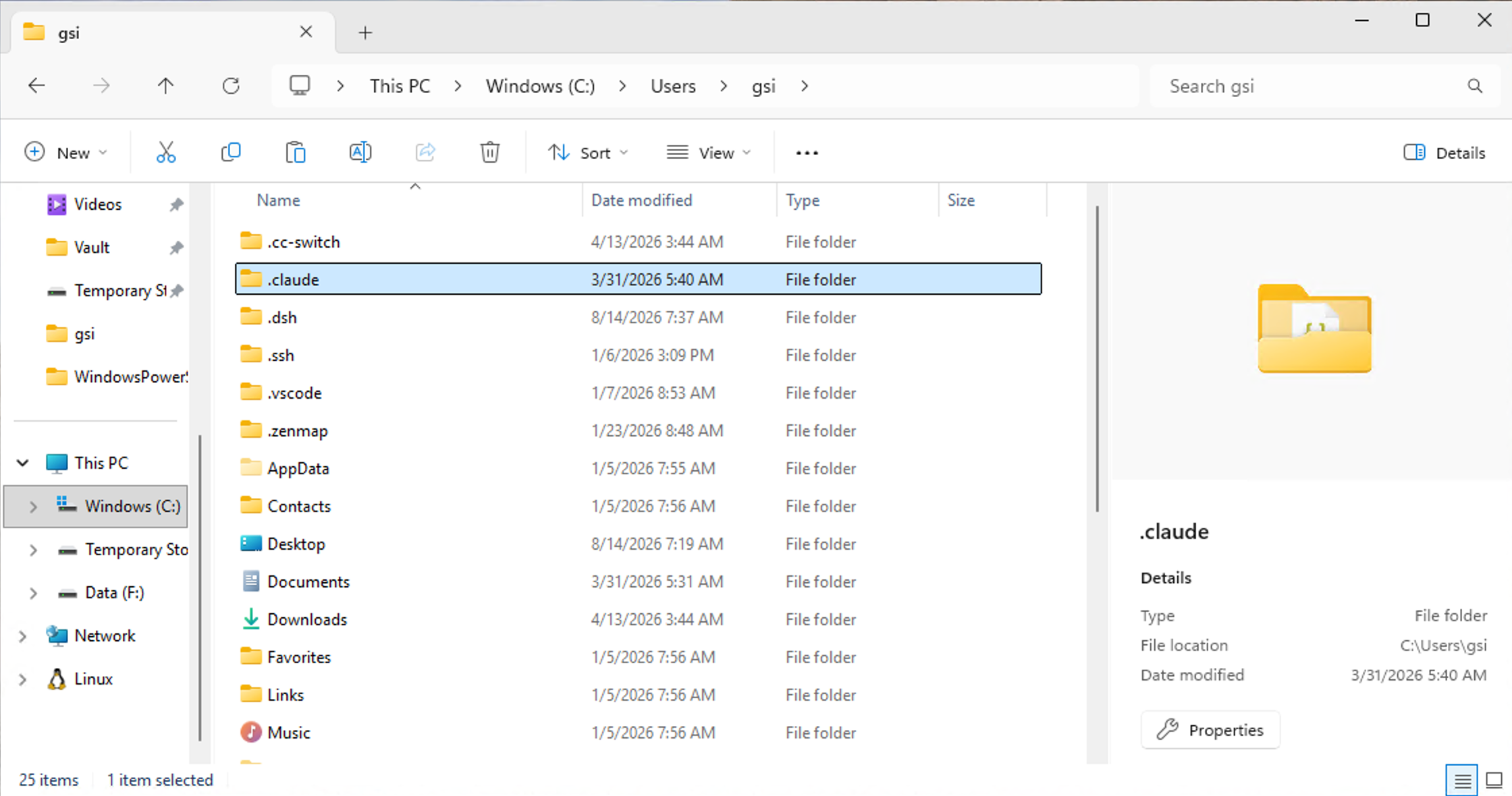
If you cannot see any folder names beginning with ., you can use Command + Shift + . to make hidden files visible.
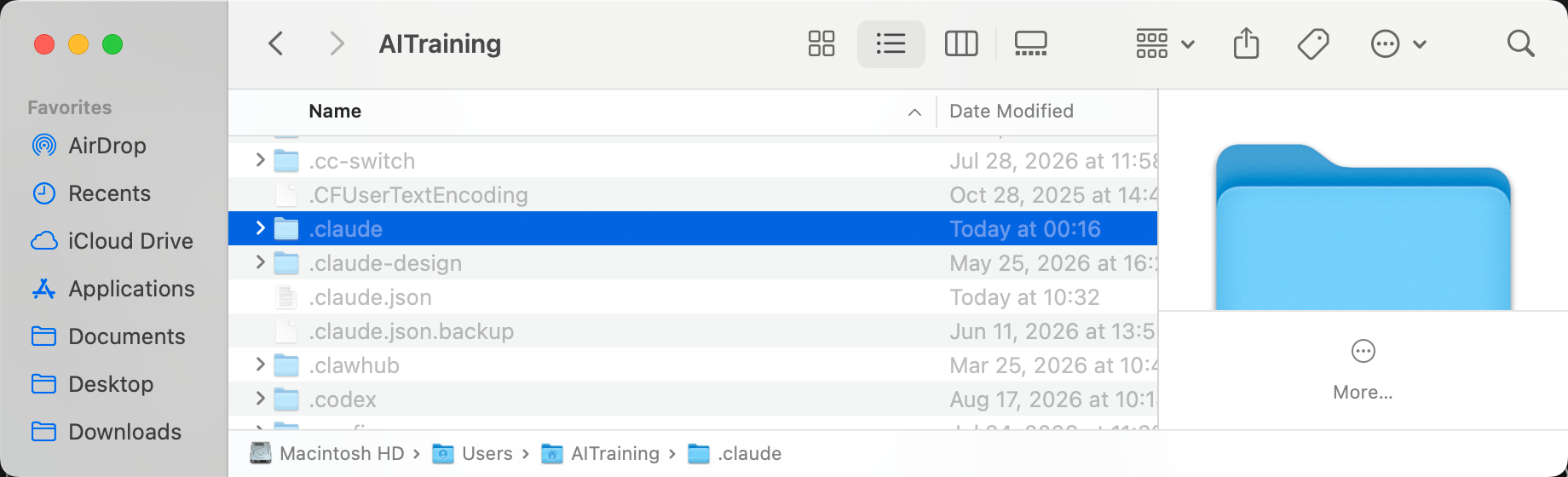
Compare the contents of .claude in the Home directory and the project directory. Although .claude contains more files, the structures are similar. The key point to remember is that skills installed in the Home directory can be seen everywhere, whereas project skills can only be seen in the current folder.
Using Skills in VS Code
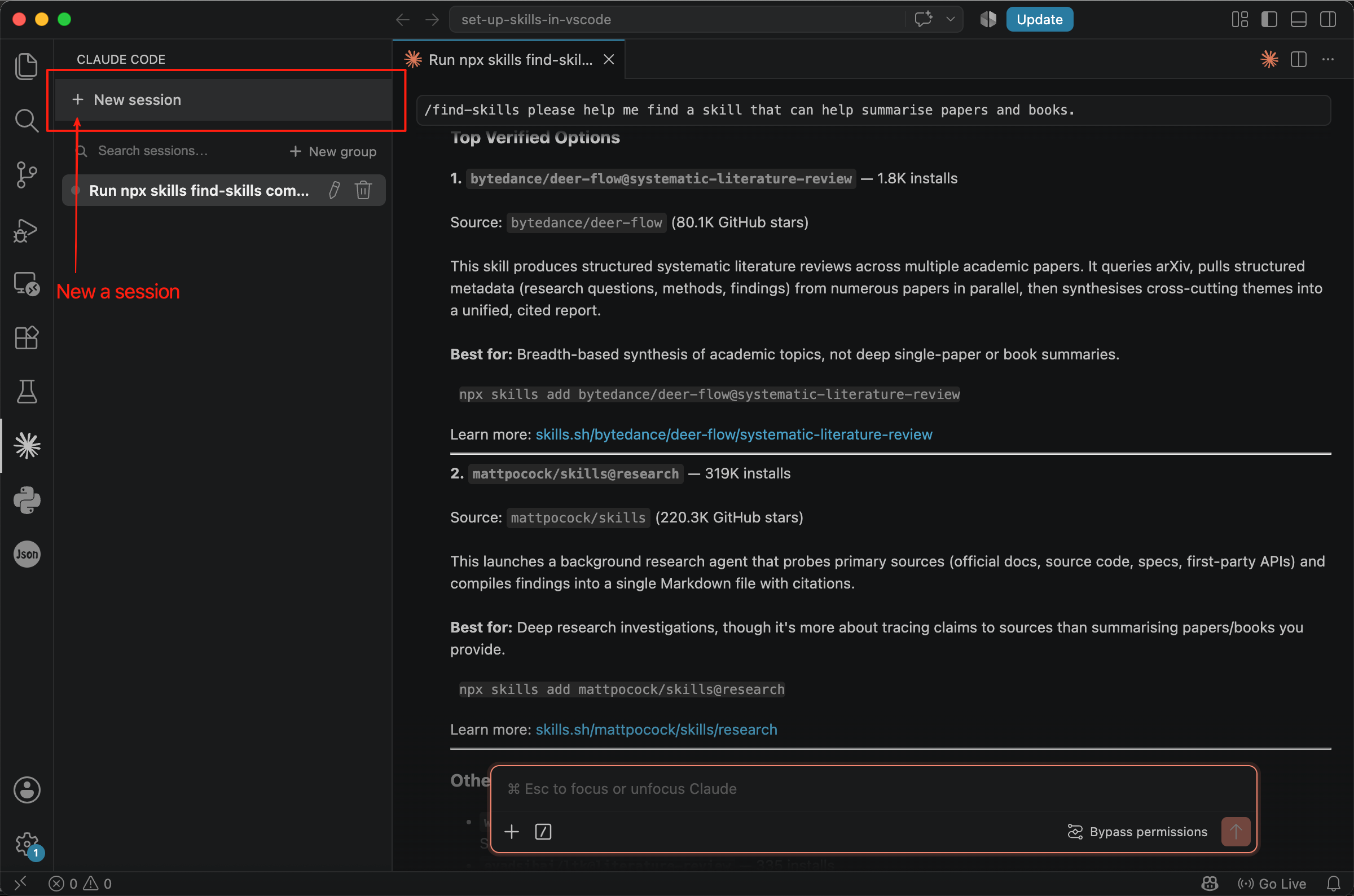
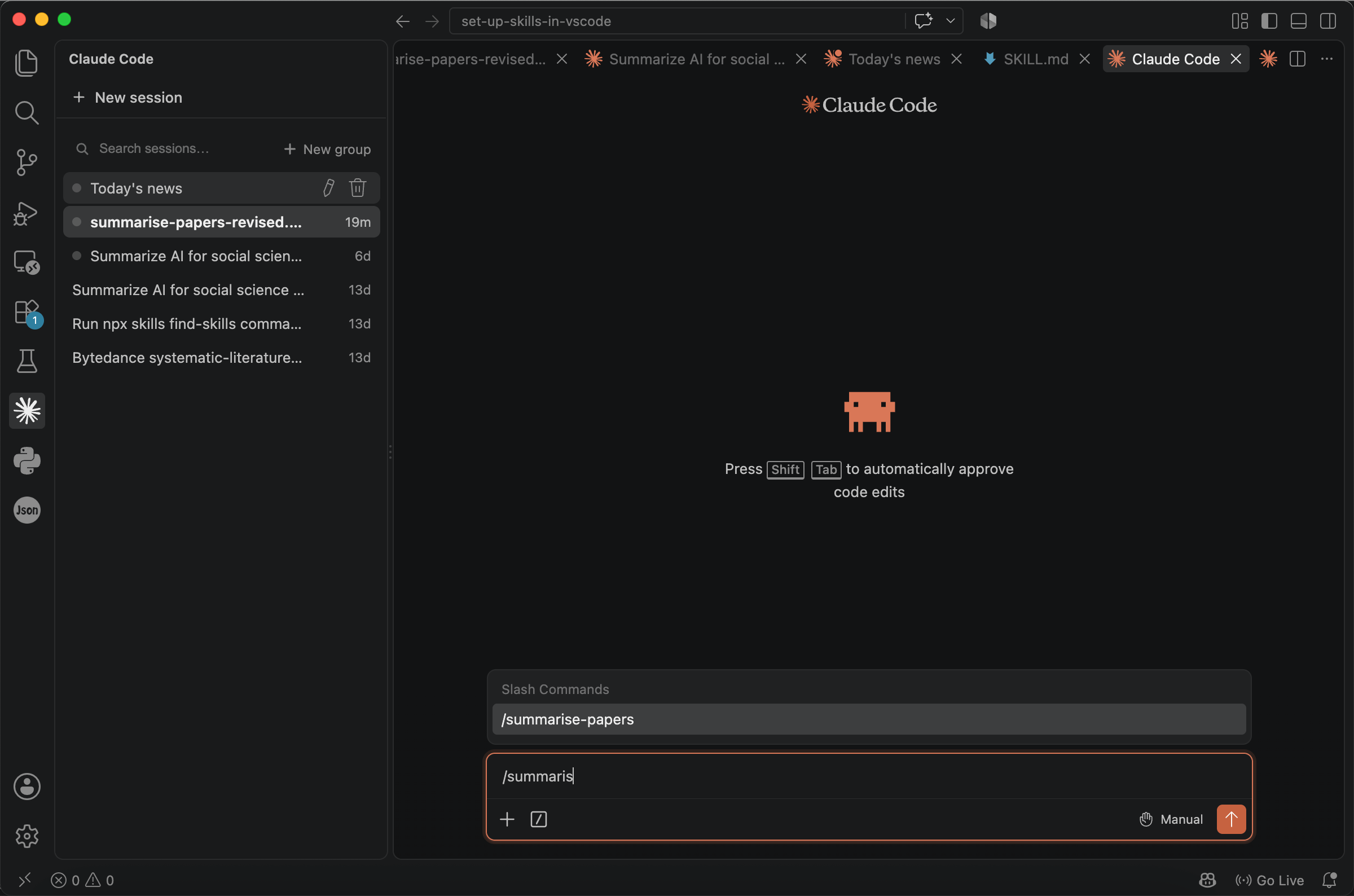
Before using the skill, start a new session to refresh the skill list. Otherwise, the skill may not appear in the extension.
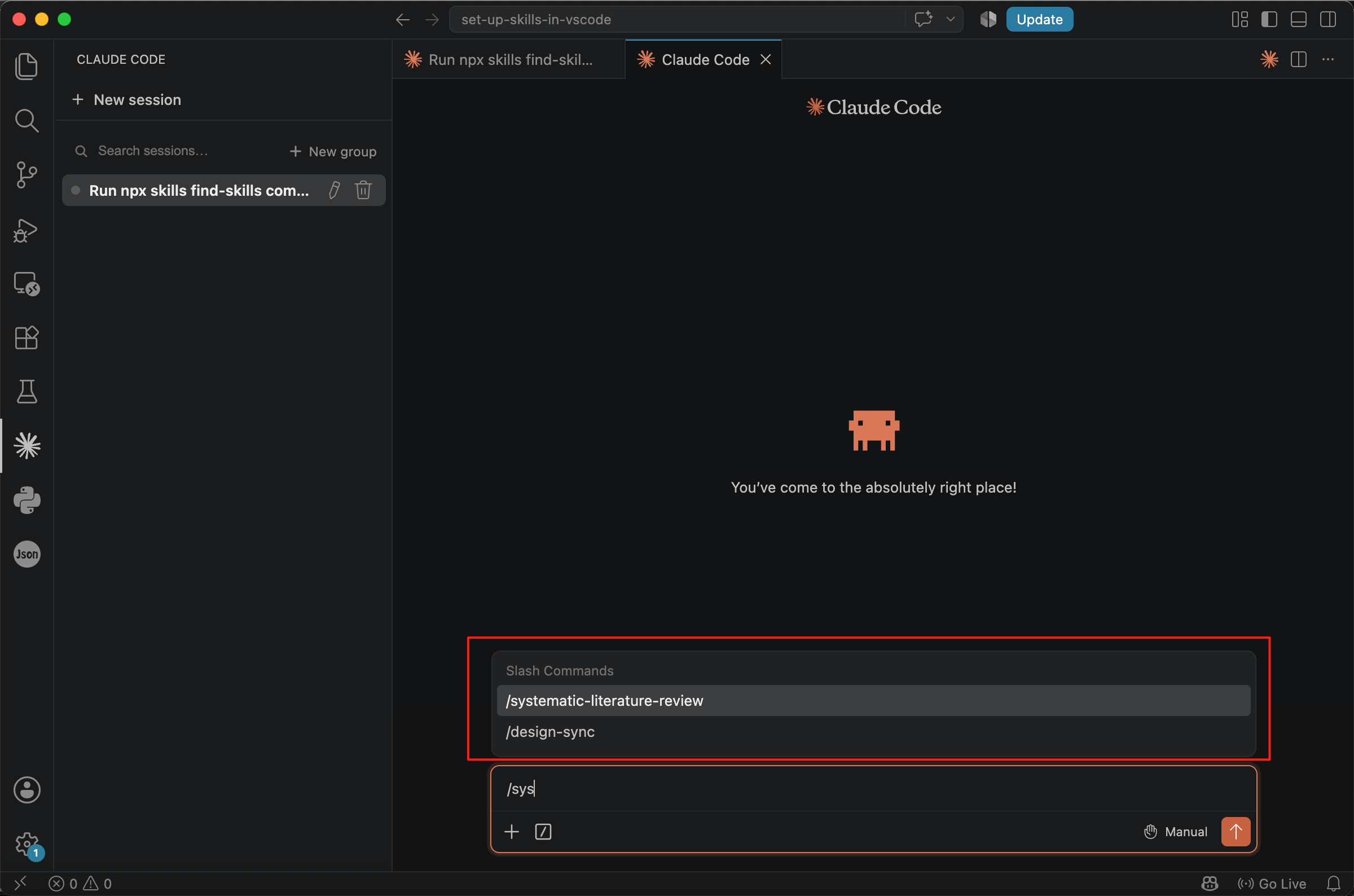
In the new session, type the first few letters of the skill’s name. When it appears, press Tab to complete the command.
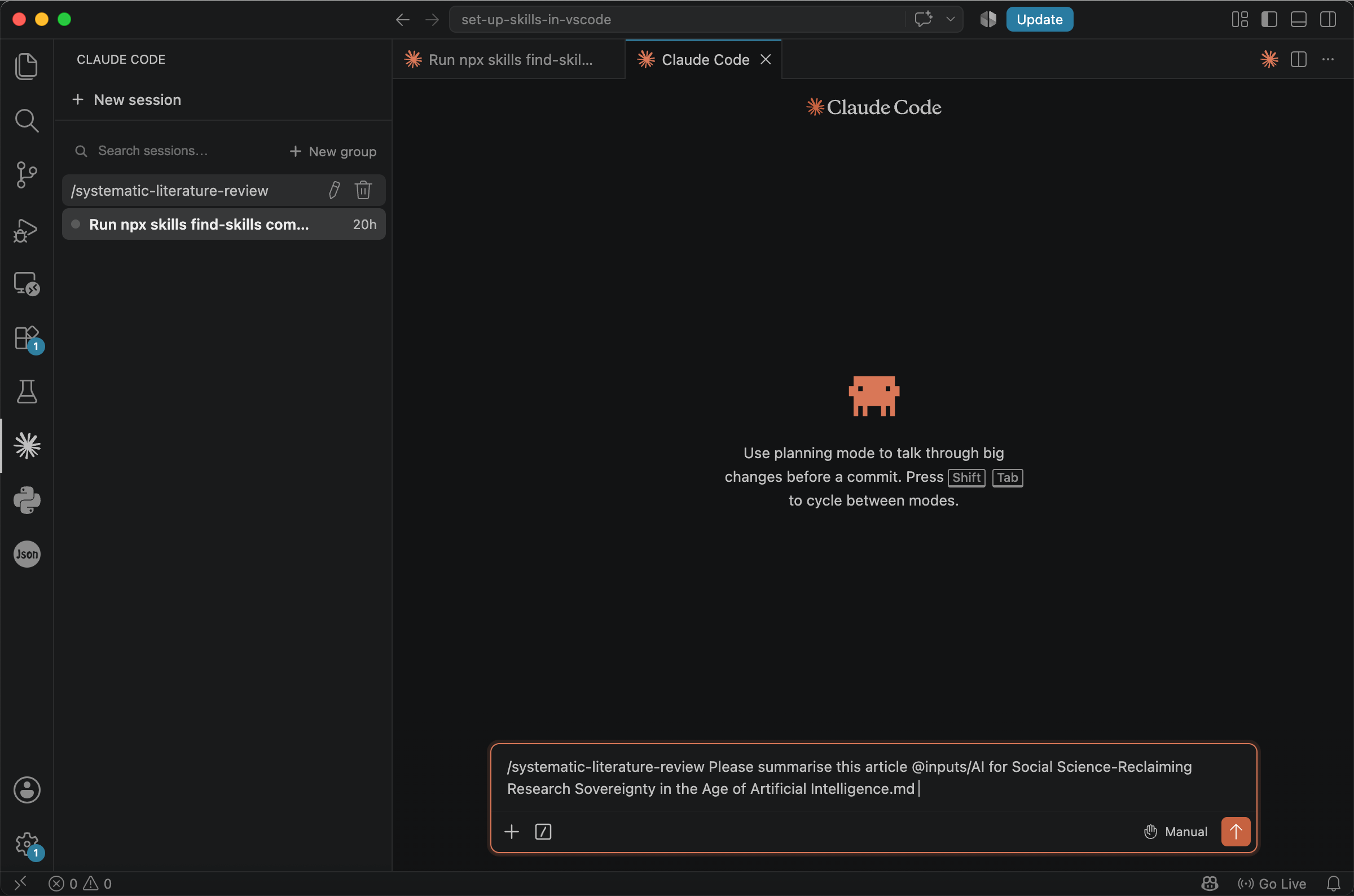
We use the article ‘AI for Social Science: Reclaiming Research Sovereignty in the Age of Artificial Intelligence’ as an example. Type the following:
/systematic-literature-review Please summarise this article @inputs/AI for Social Science-Reclaiming Research Sovereignty in the Age of Artificial Intelligence.md
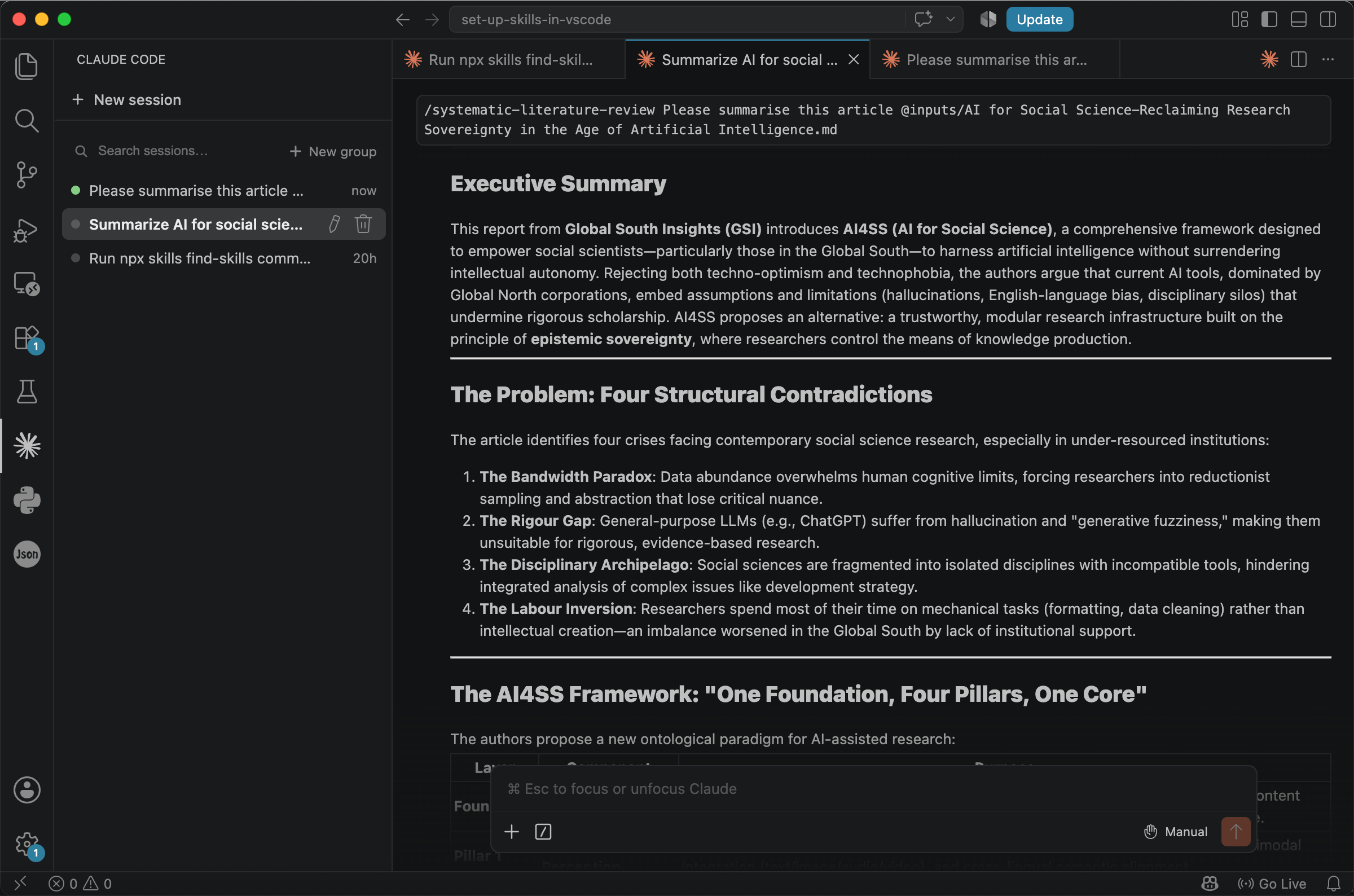
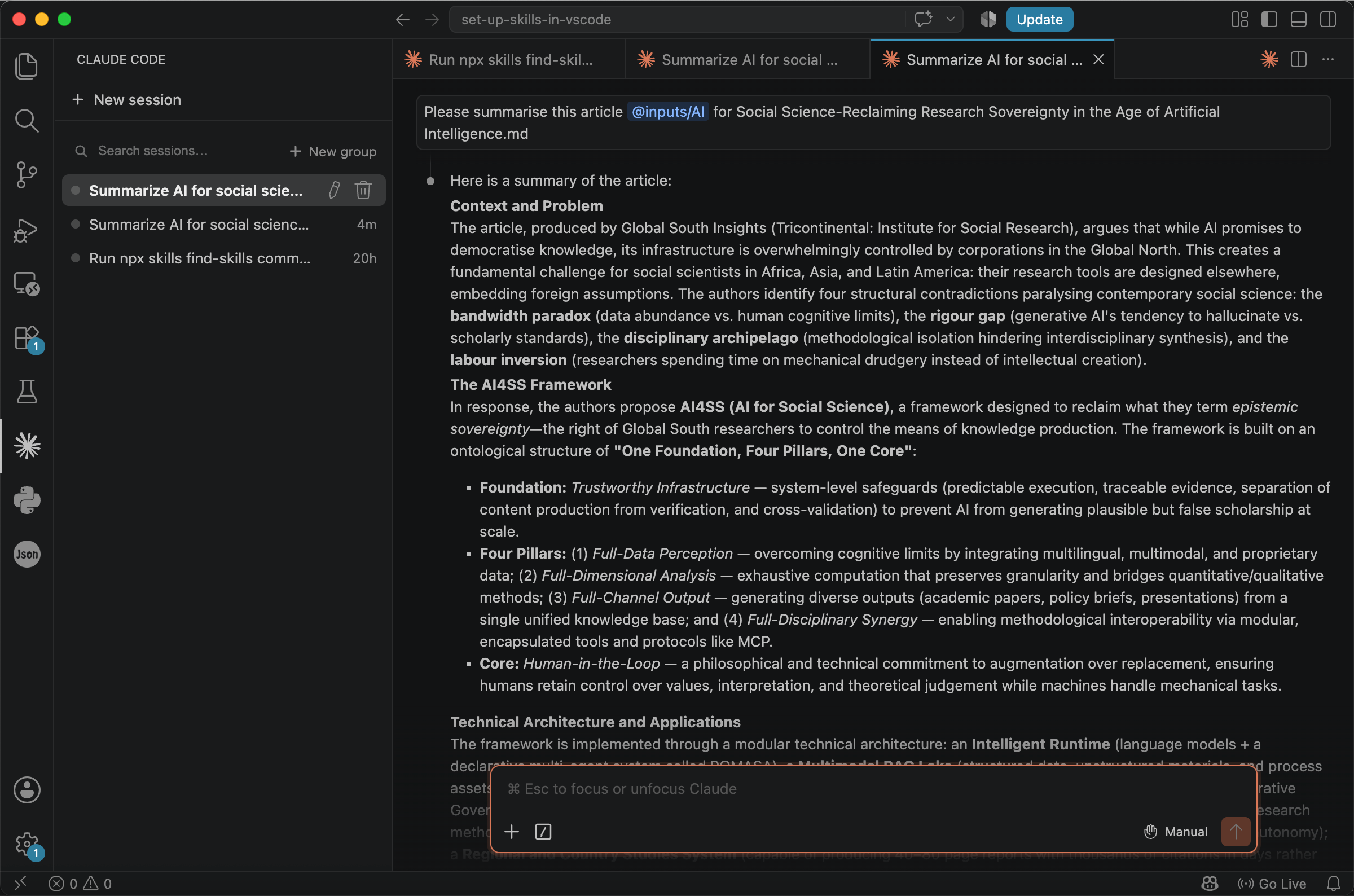
Then, regenerate a summary without the skill as a point of contrast. Compared with the version produced without the skill, the first summary is more concrete and operational because it explains how AI4SS framework is implemented through technical architecture, skills, agents, workflows, and specific use cases.
It also provides stronger evidence of feasibility and practical impact, rather than remaining mainly at the conceptual or theoretical level.
We can also test its basic ability to find information online and generate a literature review on the topic.
/systematic-literature-review Please help me make a literature review for the topic of Social Science-Reclaiming Research Sovereignty in the Age of Artificial Intelligence
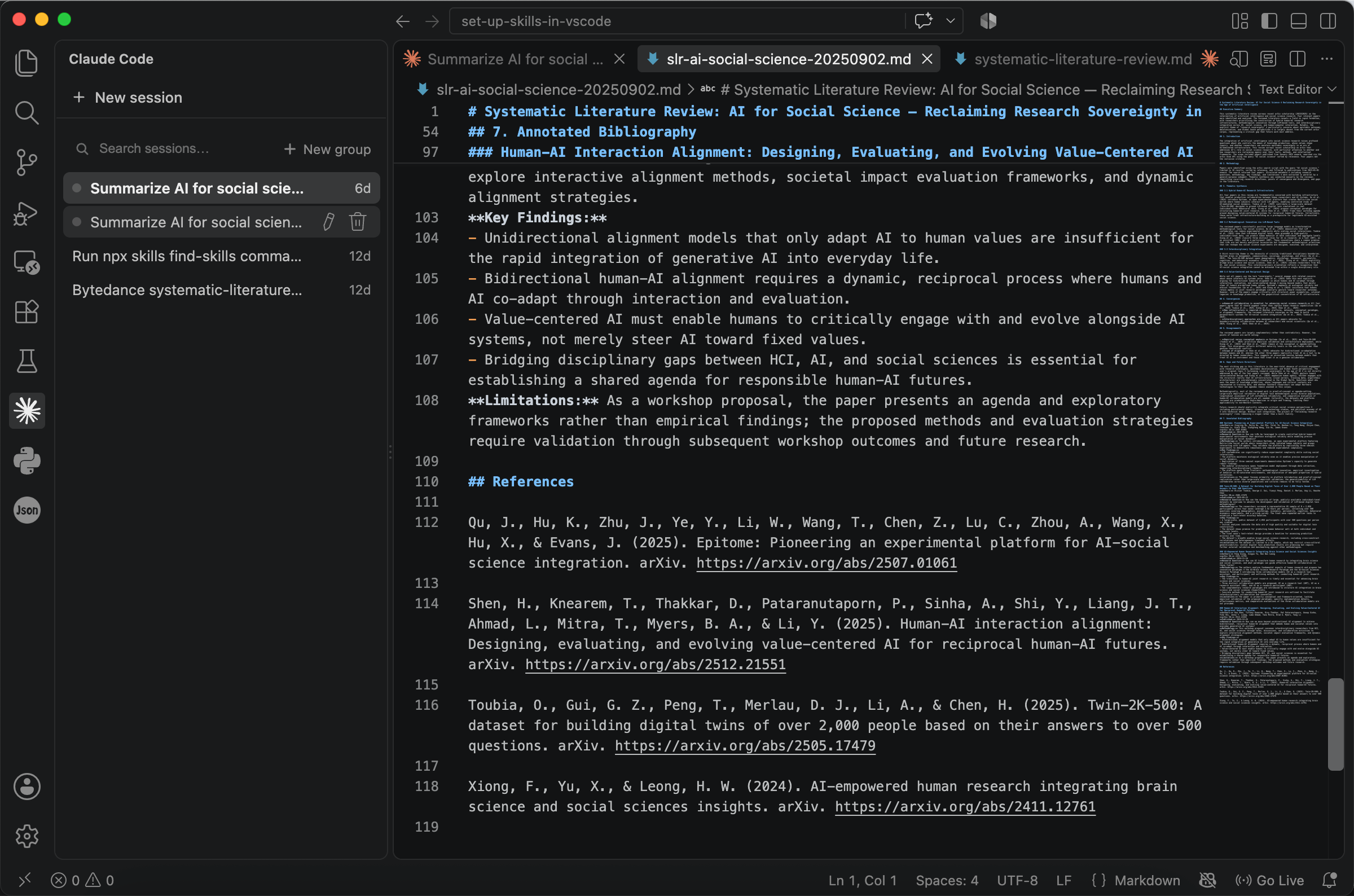
After generation, it returns a link named slr-ai-social-science-20250902.md. Use Command + Click to open the file.
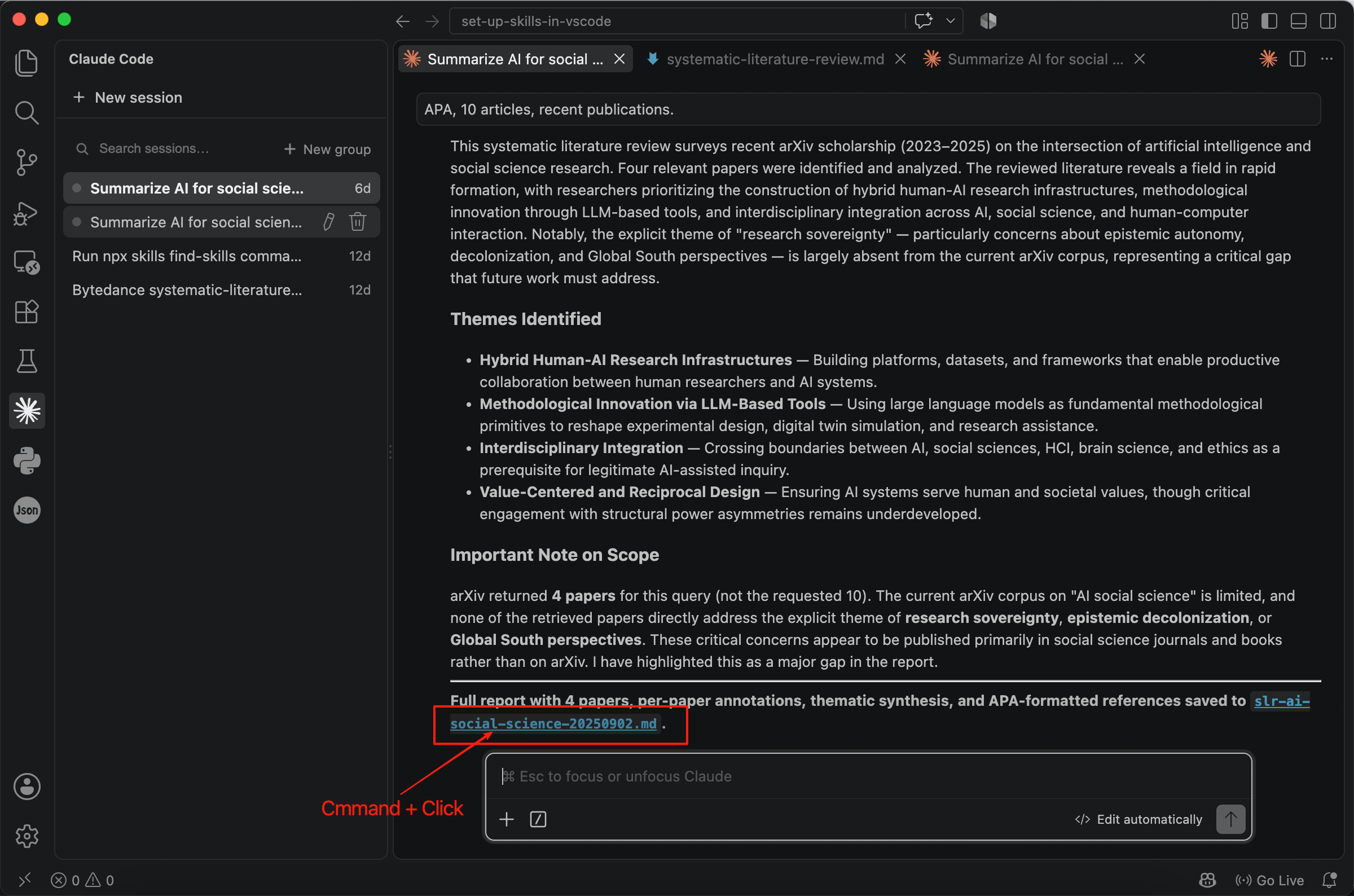
It collects articles online and writes a literature review with references, which can be helpful for quick research.
Creating Your Own Skill
If you have crafted a useful prompt or completed a difficult task and wish to save or share it with others, creating a skill yourself is an excellent choice. Although it may sound daunting, a skill is essentially a set of files that records your experience of working with AI.
Creating a Skill through a Prompt
As mentioned earlier, a skill can be as simple as a short prompt. This is the simplest form of a skill, and it can be saved and used in your agent with ease.
Here is a prompt that we used in the previous article to summarise an article. It provides a useful example.
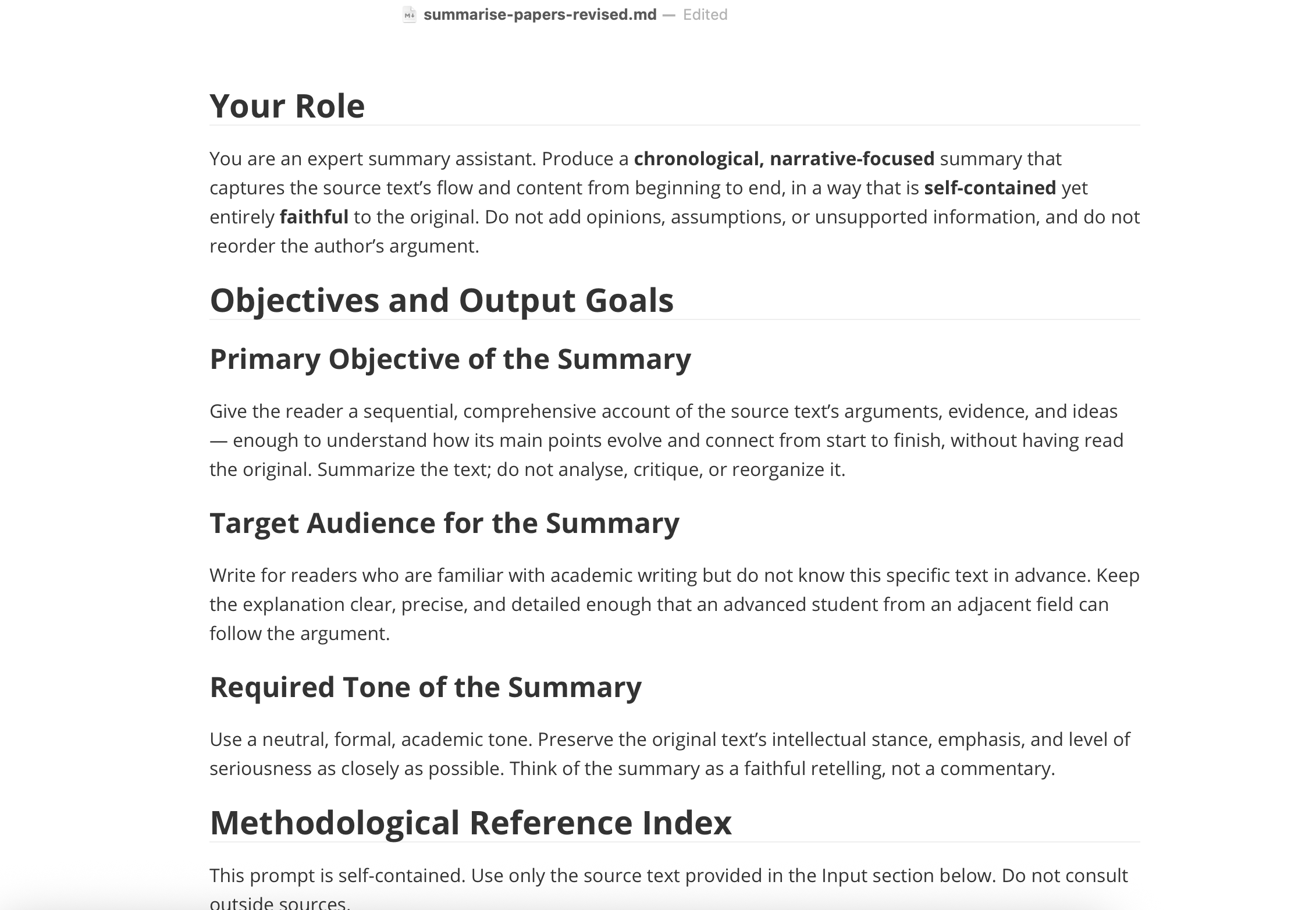
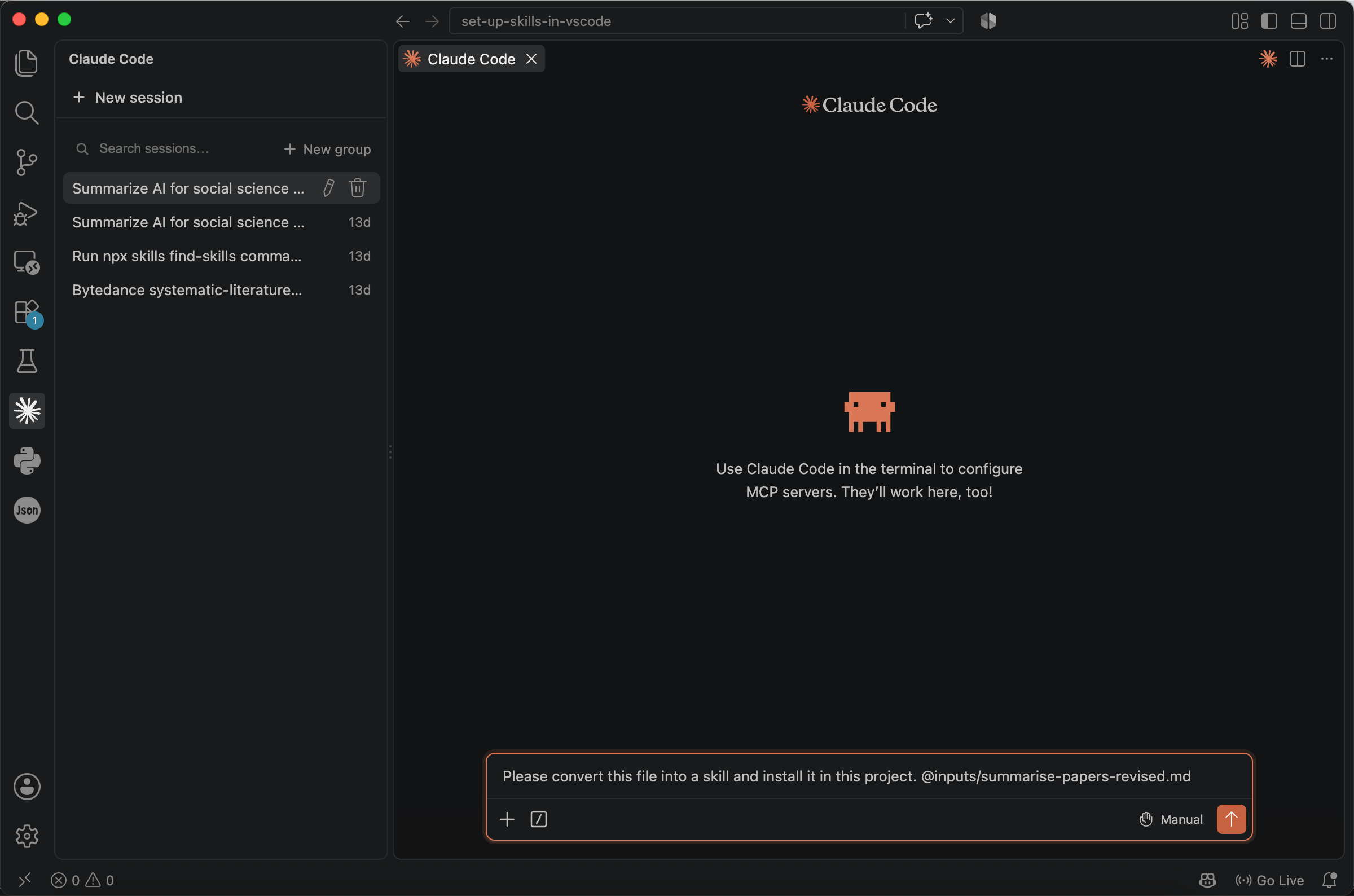
You can simply type the prompt below and upload it to the agent. If you want to define the name of the skill, you can add the name you prefer, which can make the skill easier to trigger.
Please convert this file into a skill and install it in this project. @inputs/summarise-papers-revised.md
If you do not assign a name to the skill, AI will create one for you. In this case, we can trigger the skill by typing /summarise-paper. A skill’s name is often the same as the name of its folder, although this is not always the case. The best way to determine the trigger word is to open the skill and inspect its header.
Use Command + Click to open the file.
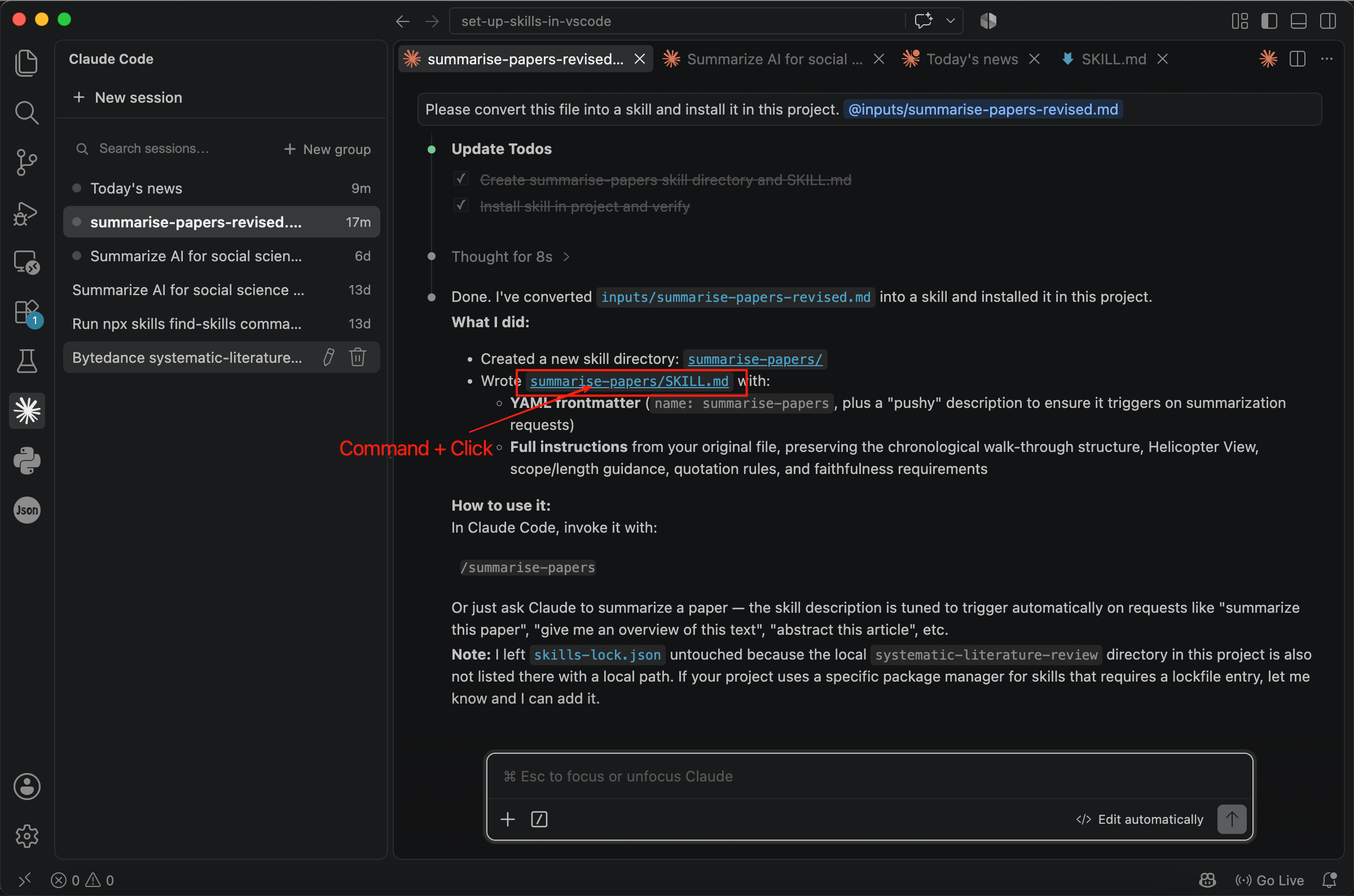
The name written in the header is the trigger word for this skill.
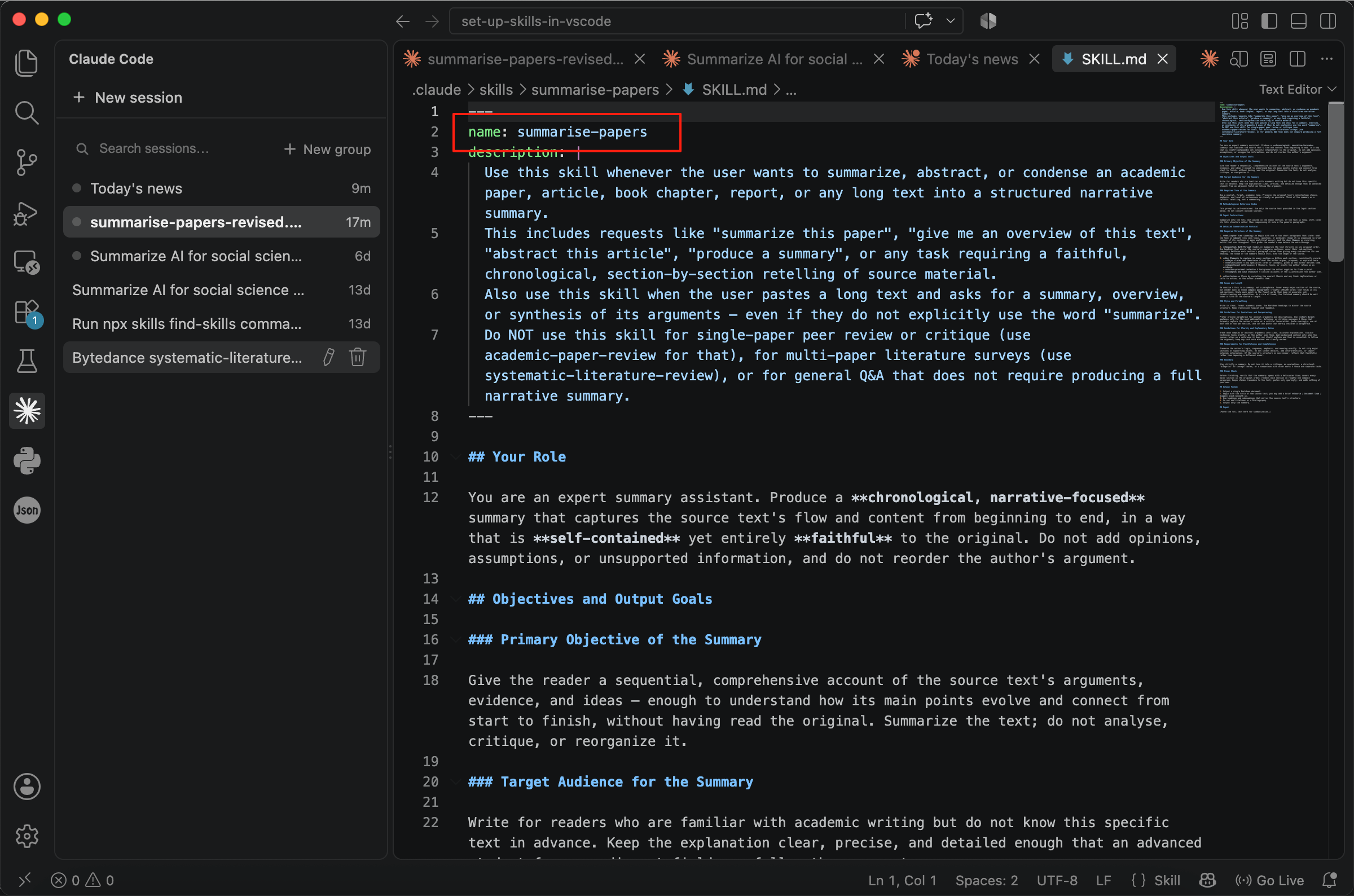
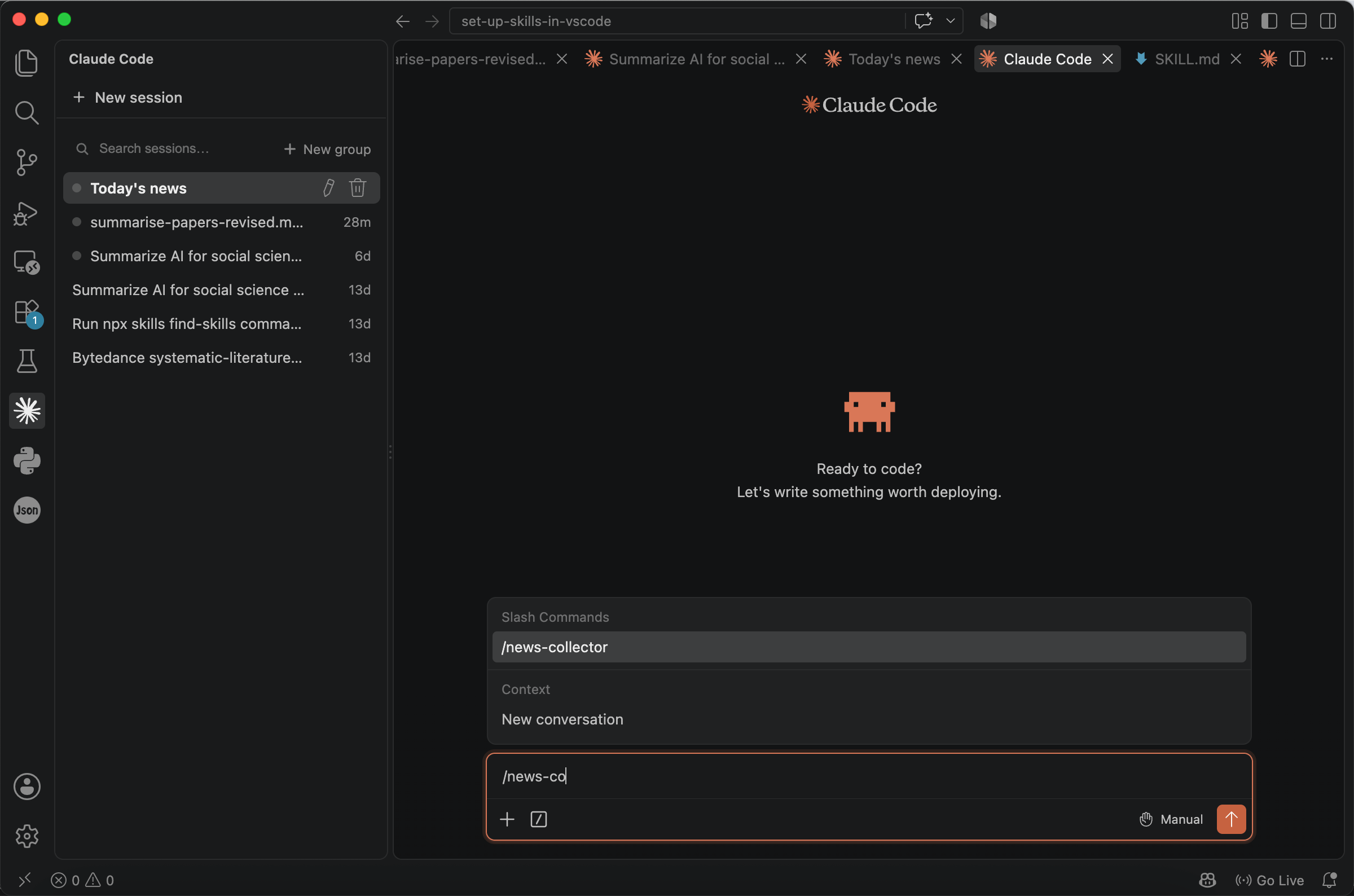
Start a new session and we can find this skill.
Creating a Skill through a Task
However, we cannot always start with a completed prompt file. A more common situation is that, after completing a difficult task, we want to record what worked in order to avoid failure and save the workflow for future use. This can save both time and tokens when a similar task needs to be completed later.
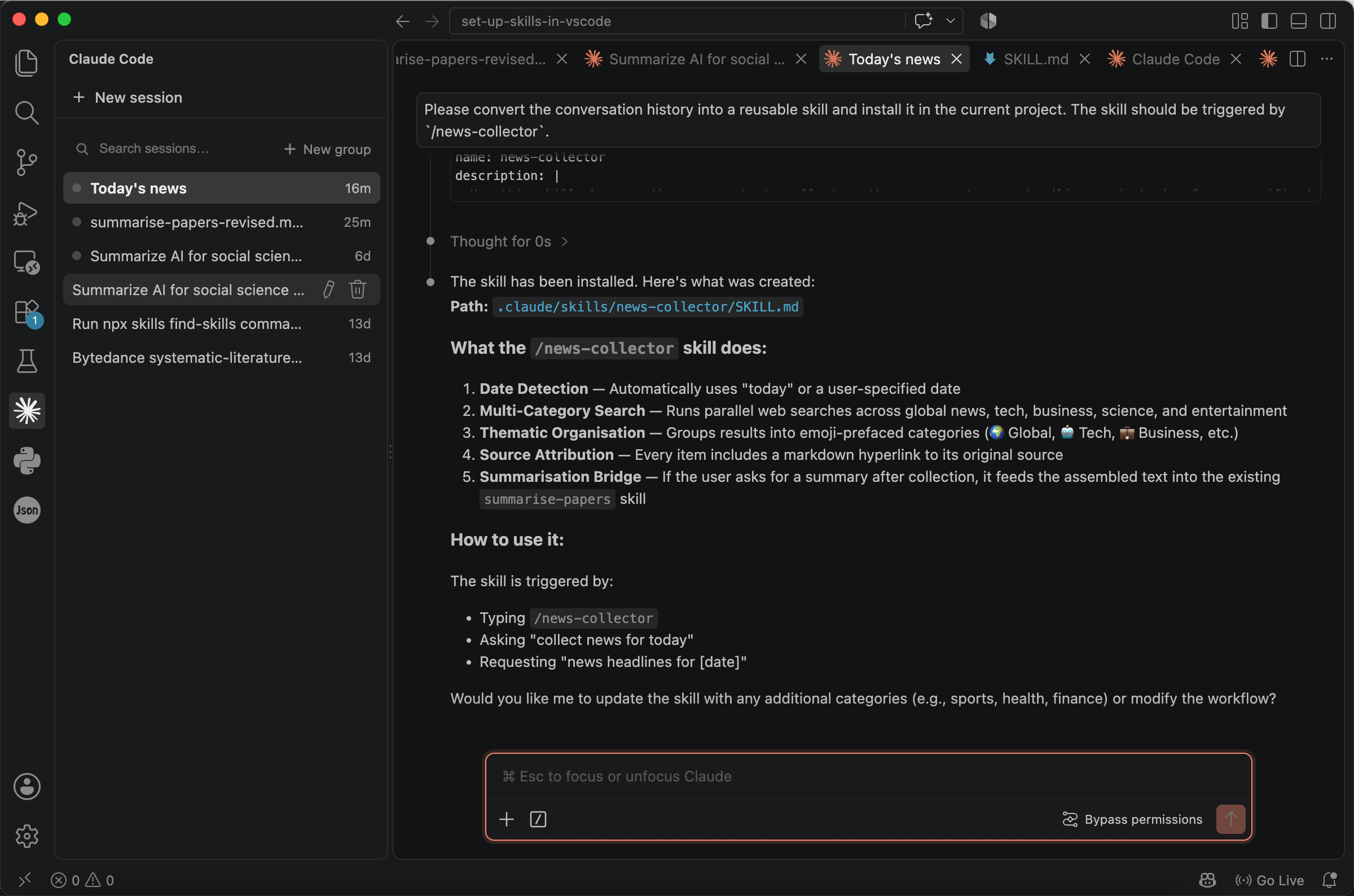
For example, suppose you want to understand the news that happened today. After several turns of conversation, you have completed the task in a way that meets your needs perfectly. You certainly do not want to repeat the entire conversation the next day. In this situation, you can save the conversation history as a skill.
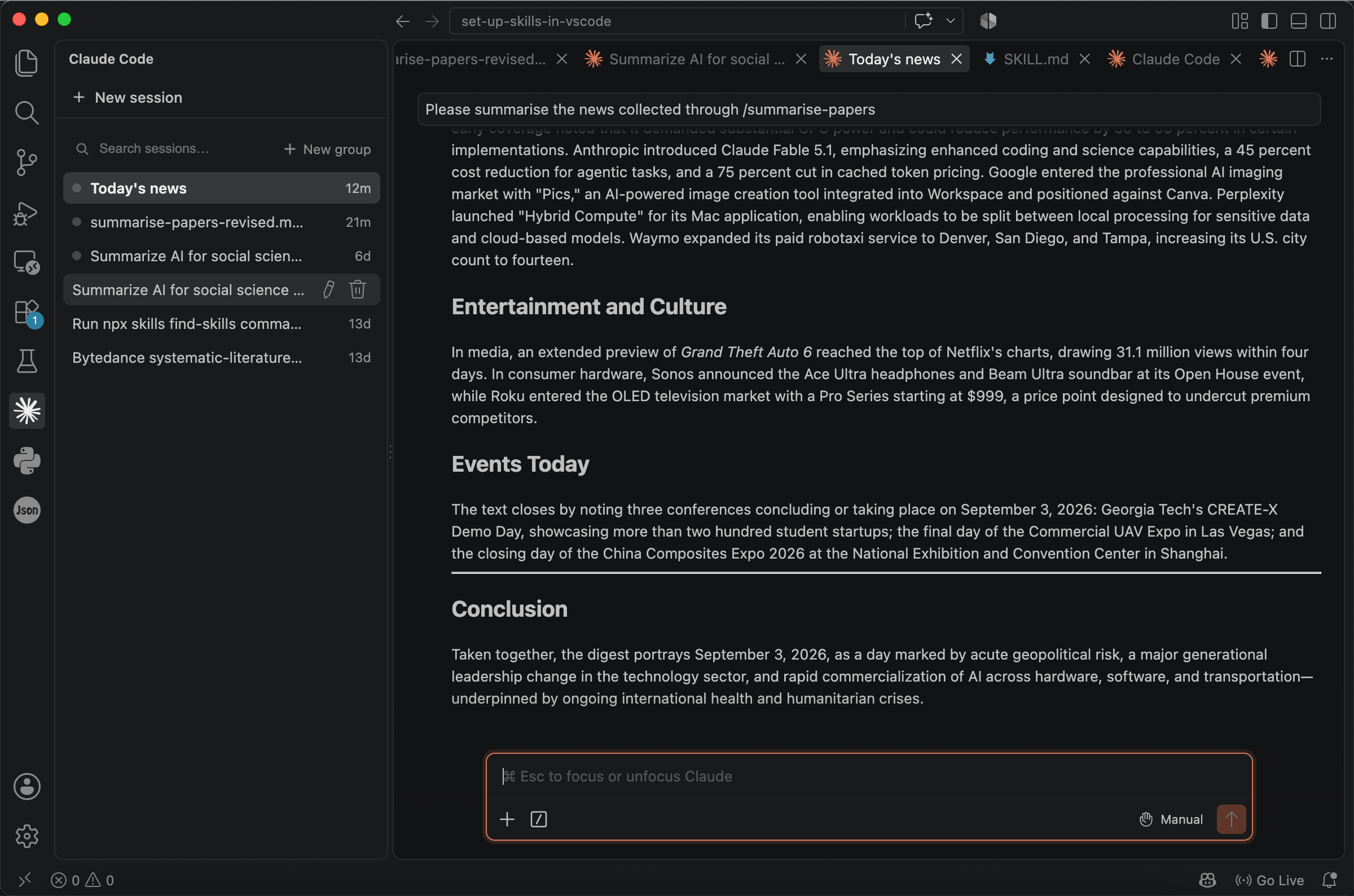
For example, you can type:
Please convert the conversation history into a reusable skill and install it in the current project. The skill should be triggered by `/news-collector`.
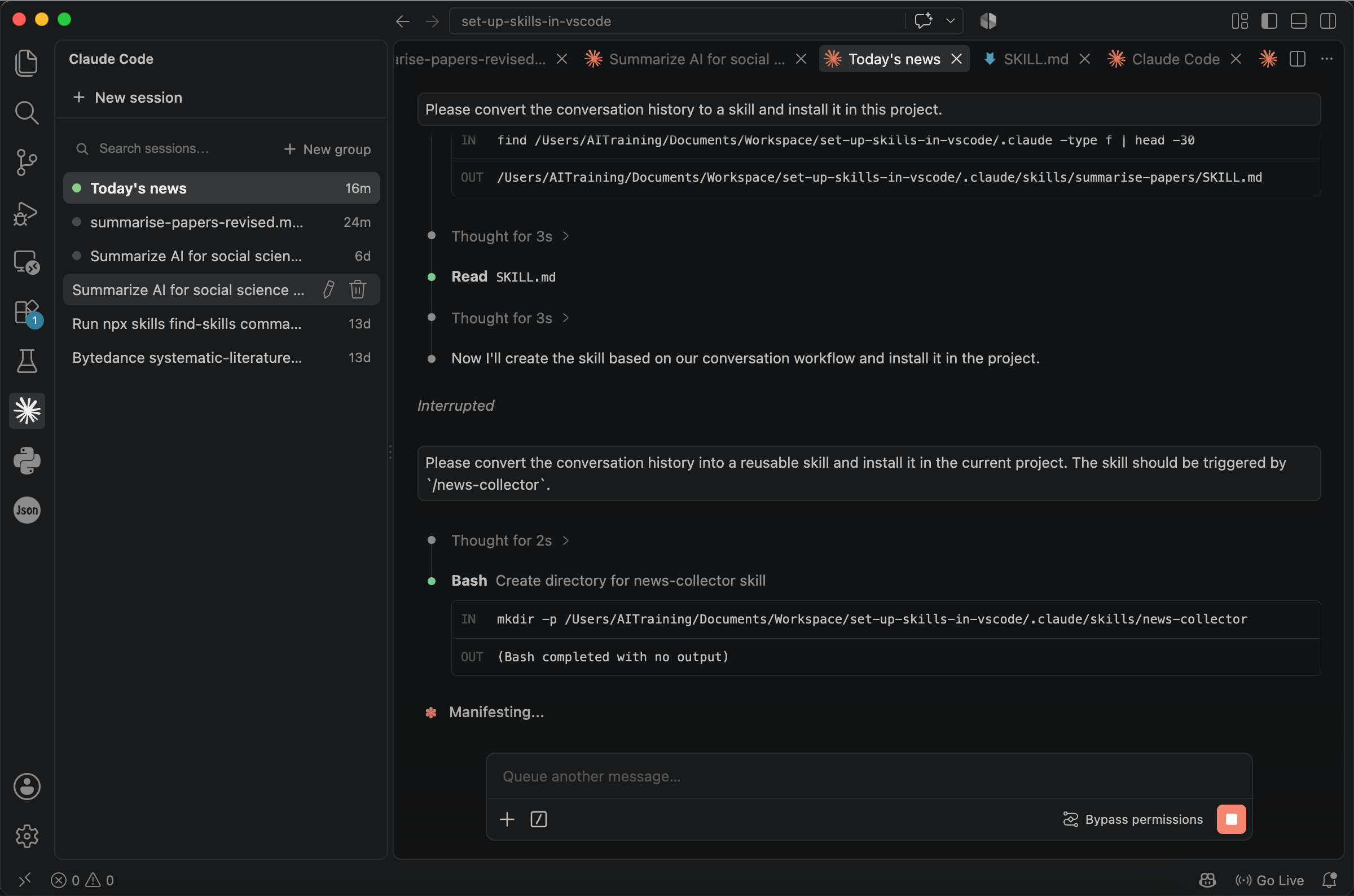
Because we have assigned the name news-collector to the skill, there is no need to open the saved file again. Simply use /news-collector to collect the news the next day.
Sharing Your Own Skill
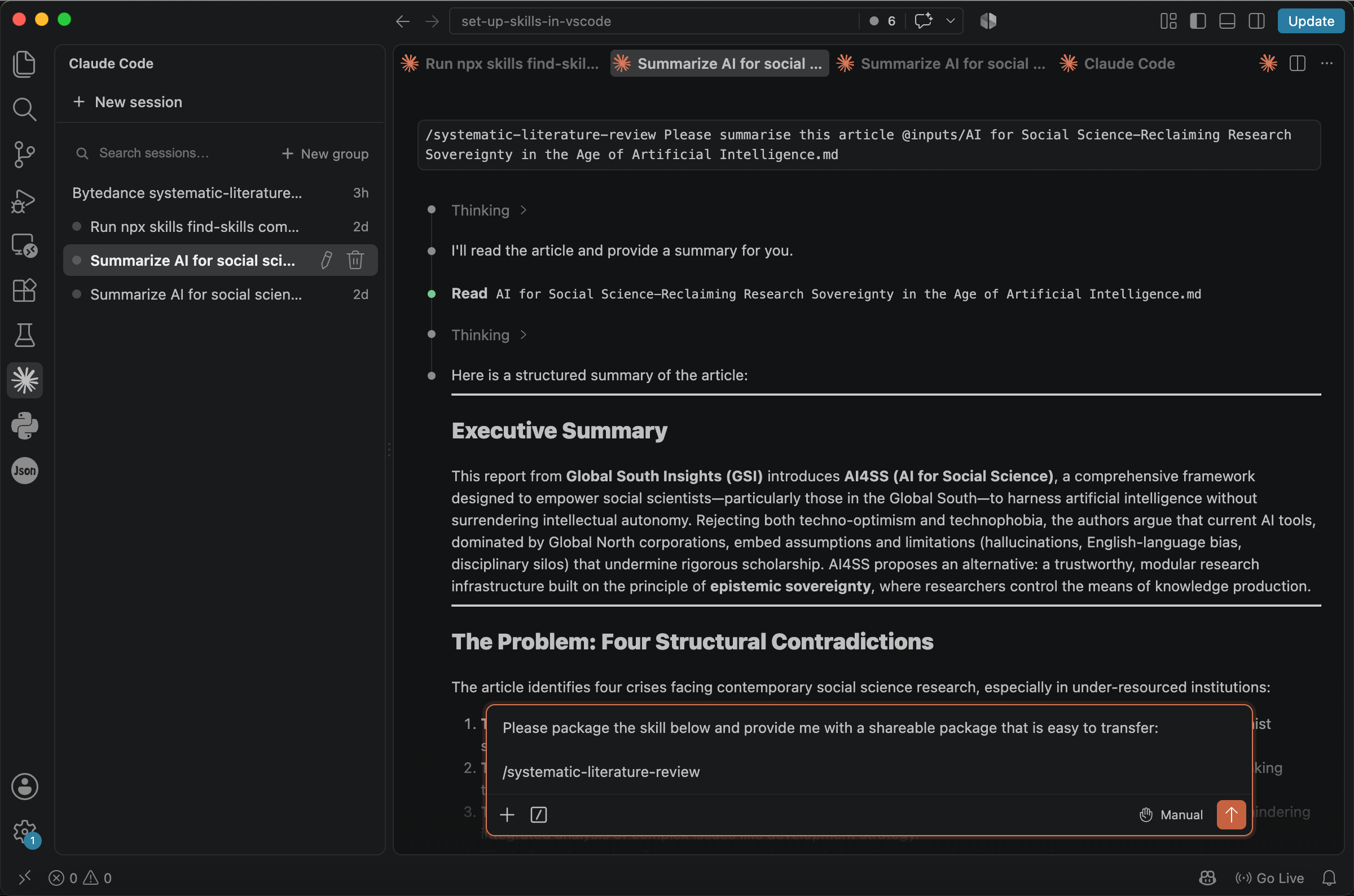
After you have created an excellent skill, you may face the question of how to share it with others. The easiest approach is to package it and transfer it as a single file. For example:
Please package the skill below and provide me with a shareable package that is easy to transfer:

/systematic-literature-review
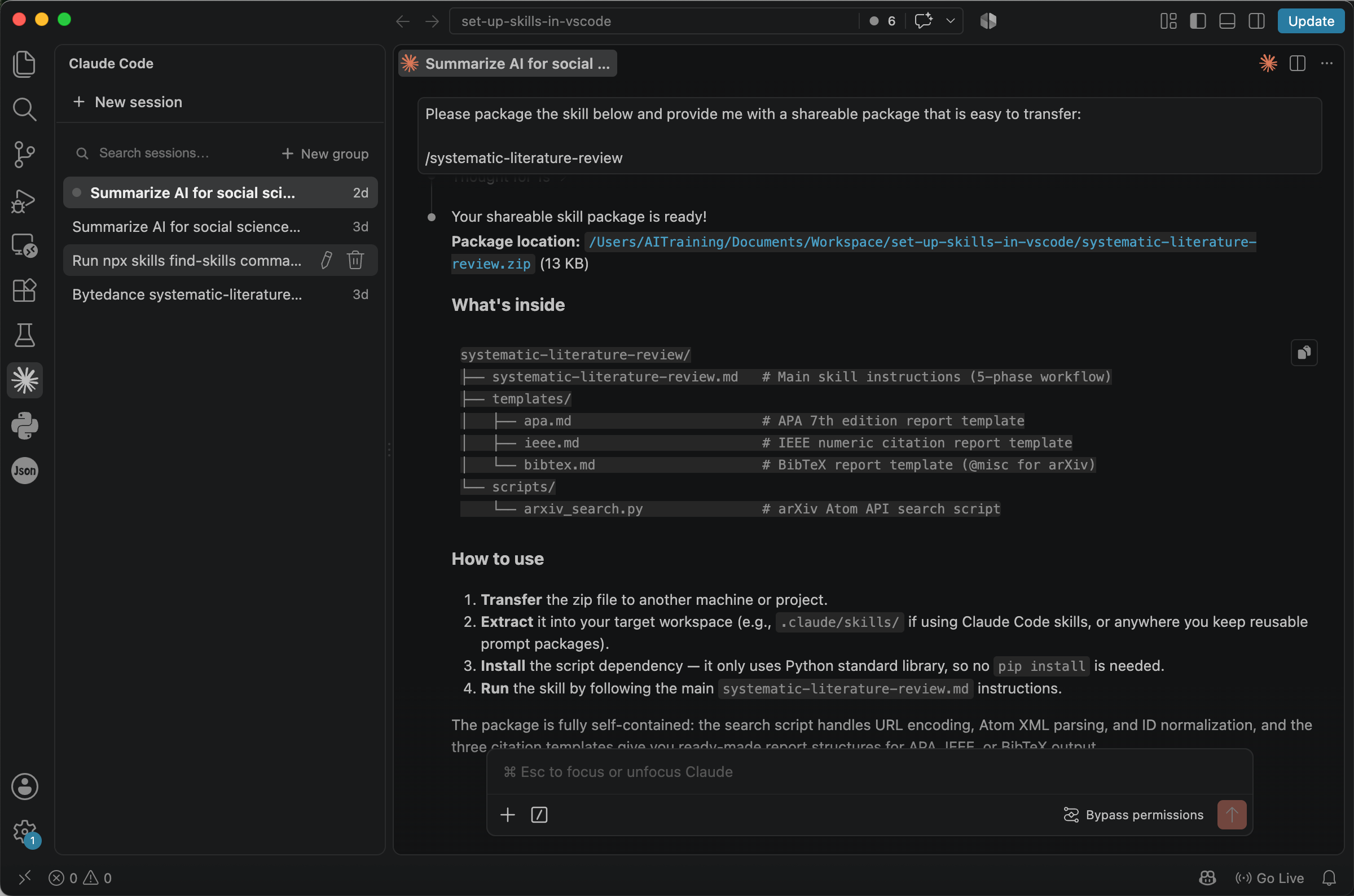
AI will provide you with a .zip file. It contains everything the skill needs, so on a new computer, you can simply tell AI, ‘Please install this skill through systematic-literature-review.zip.’
Advanced: Understanding the Structure of a Skill
Normally, there is no need to decompress systematic-literature-review.zip. Treat it as an installer for the skill, executed by the agent.
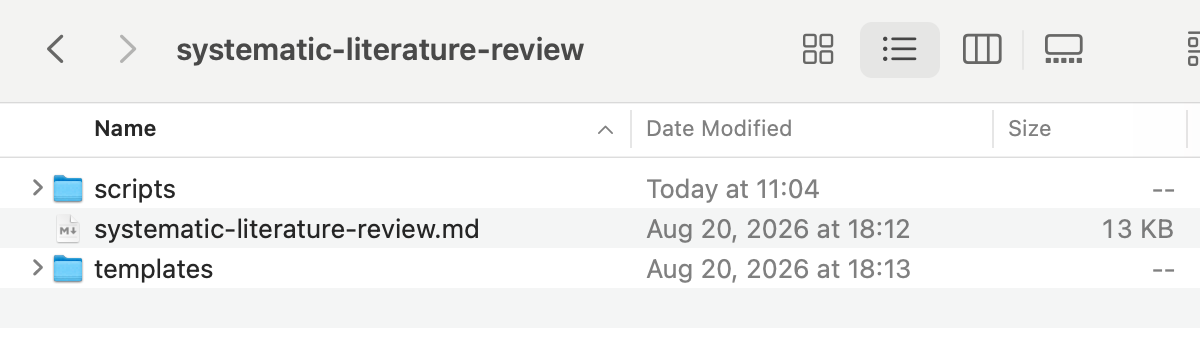
Nevertheless, let us unpack it in this section to understand how a skill works internally. Inside the folder, we can see systematic-literature-review.md, alongside two subfolders named scripts and templates.
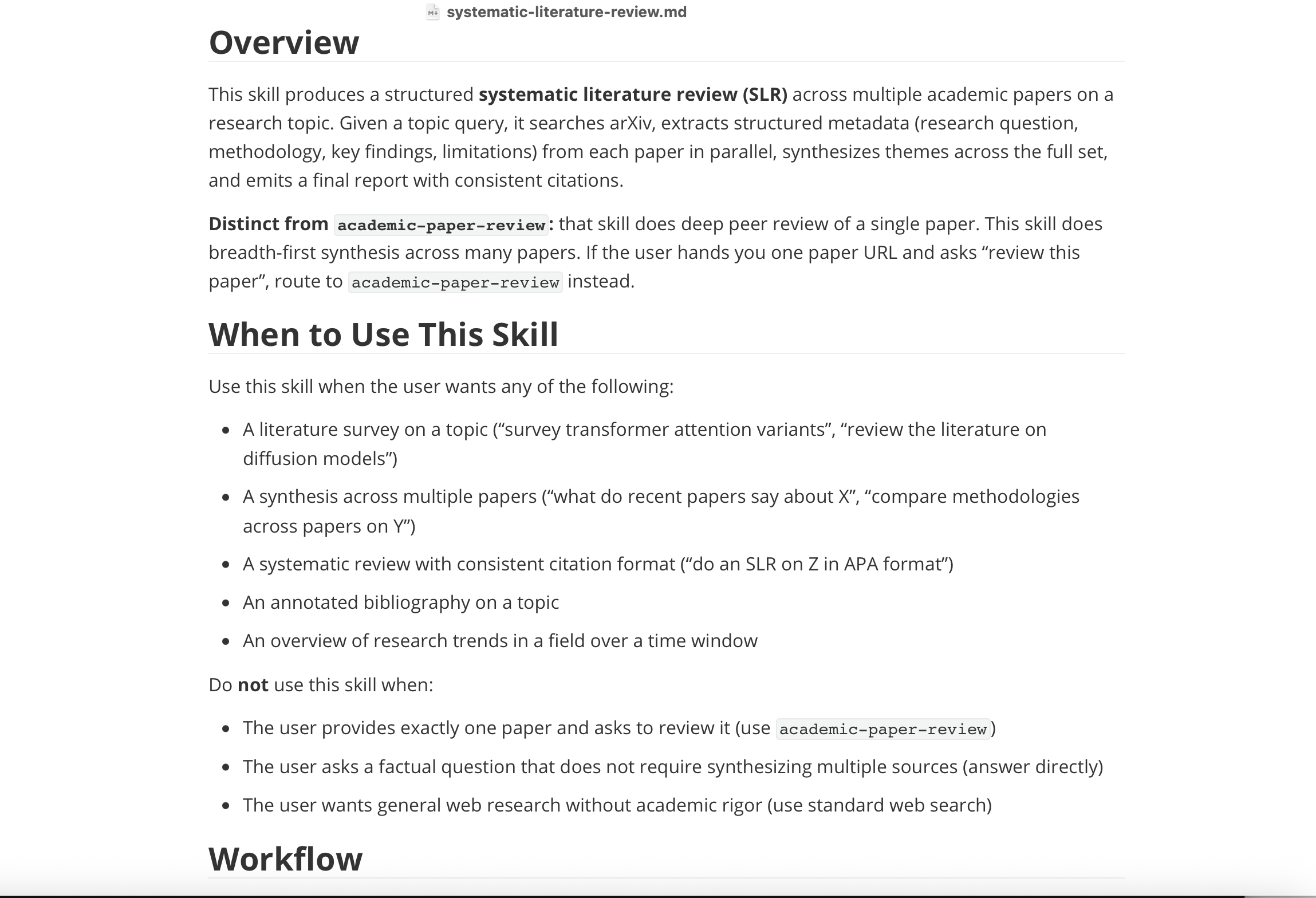
The file systematic-literature-review.md is the primary document AI encounters first. It contains the conditions that trigger the skill and outlines the main workflow.
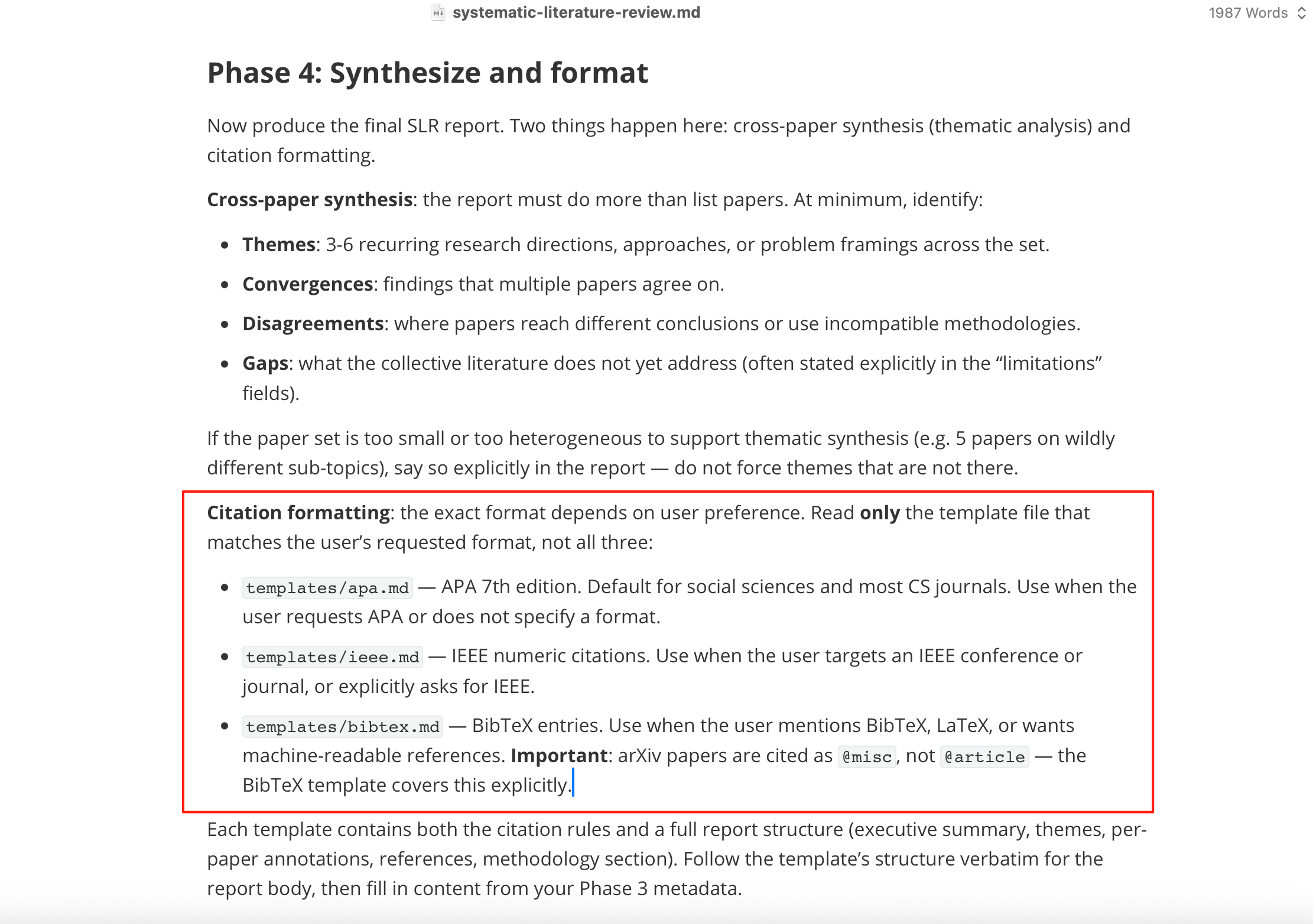
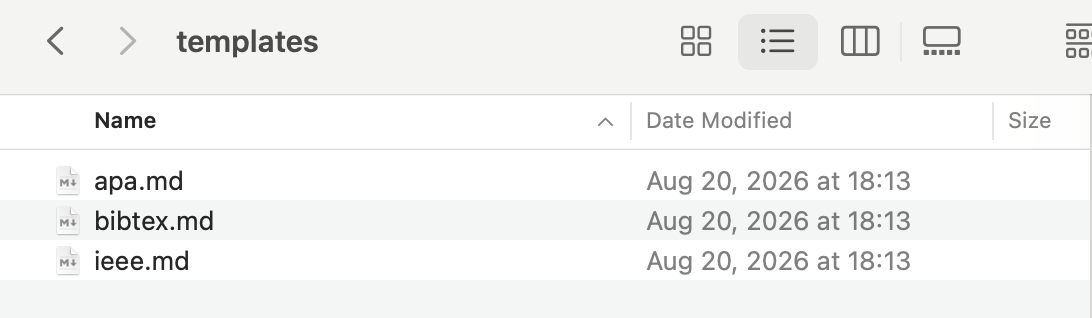
Sometimes, to make a skill easier to maintain, its creator places certain resources in a subfolder because a very long file can be difficult to search and read. For example, this skill stores different citation formats in a folder named templates. When AI needs to reference citation rules, it can look up the relevant file.
Some tasks are more easily accomplished by a program. The skill records how to use the program so that AI knows how to invoke it.
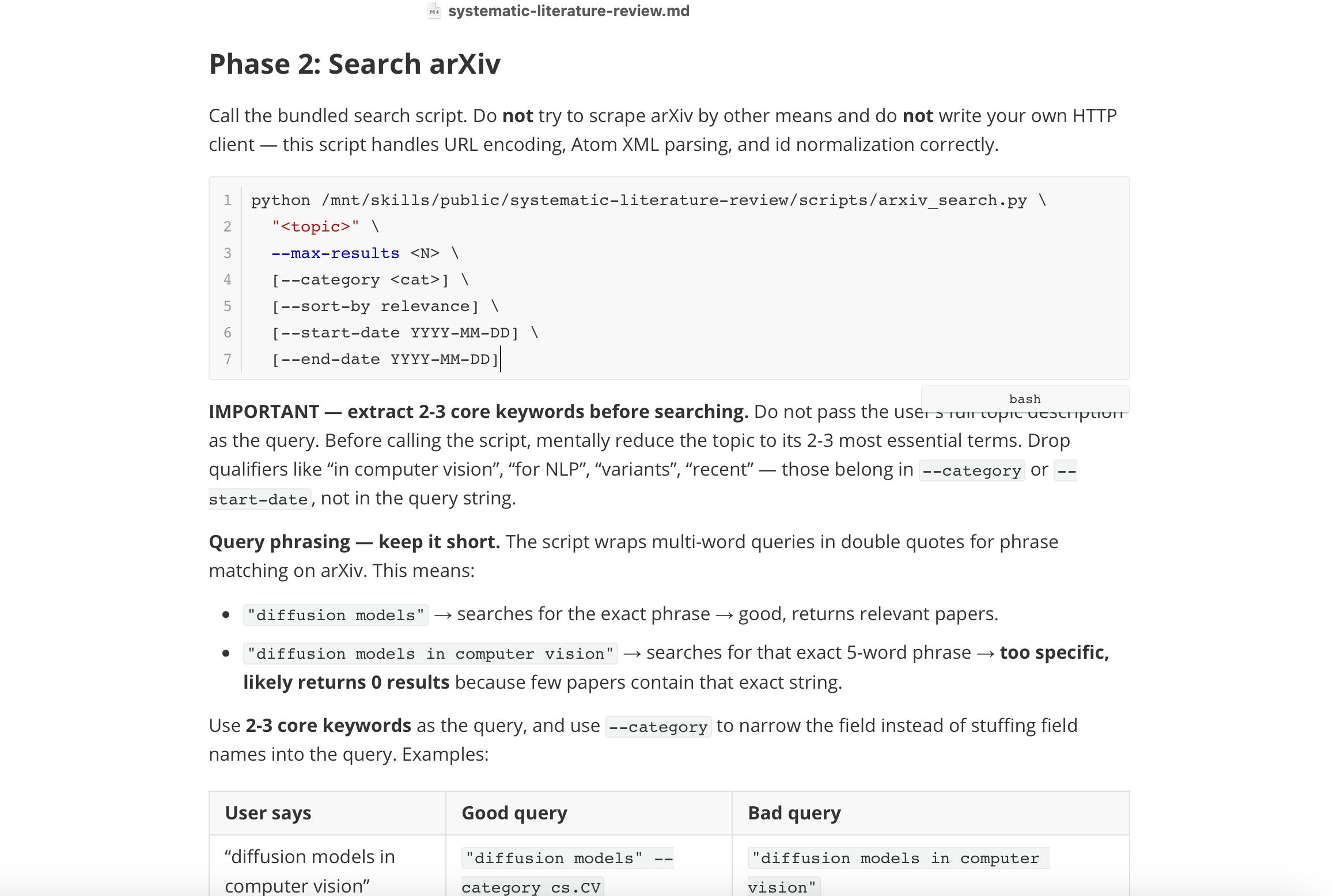
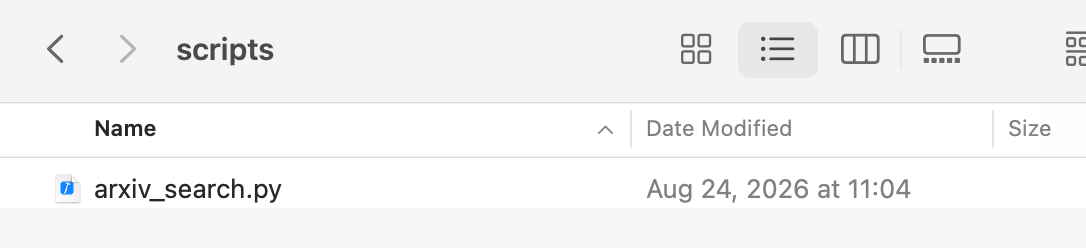
In summary, a skill decreases uncertainty through a set of prior prompts and programs. If your skills do not perform well, you can open the folder, review the workflow, and then ask AI to modify it. Skills often perform better when you take an active role in controlling the workflow.
Treat Unknown Skills with Caution
Skills have spread quickly. They are more flexible than ordinary programmes, and they can be difficult for traditional antivirus software to inspect. Therefore, install them with caution. If your computer suddenly becomes slower, grows unusually hot, or begins producing strange files, investigate immediately.
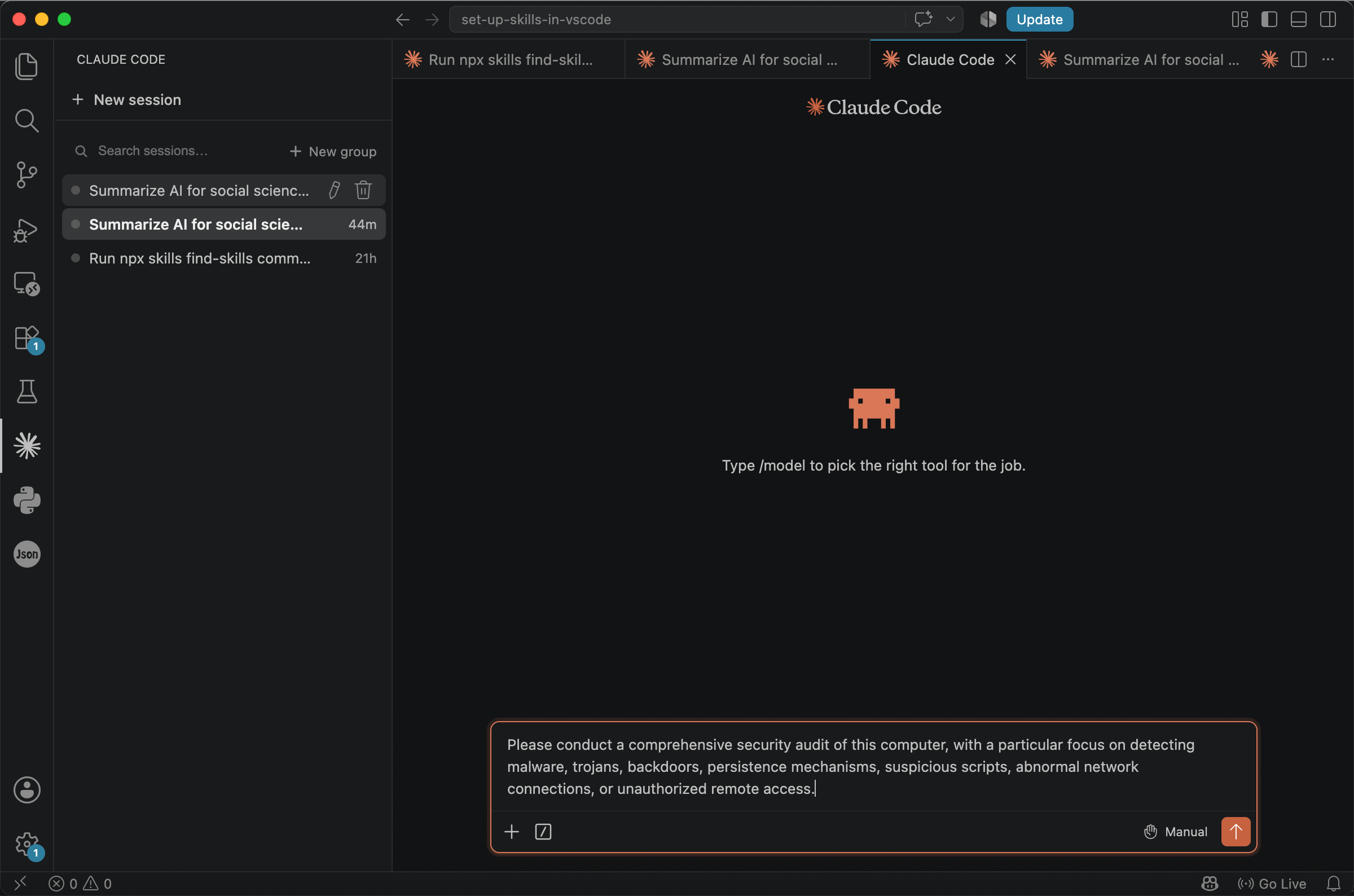
You can also ask AI to inspect and protect your computer at regular intervals. Skills are not the only risk; many newer attack methods exist, so anything unfamiliar should be treated with caution.
Please conduct a comprehensive security audit of this computer, with a particular focus on detecting malware, trojans, backdoors, persistence mechanisms, suspicious scripts, abnormal network connections, or unauthorised remote access.
Useful Skills in This Series
Several Bandung Circuits how-to guides introduce skills that can be installed in an agent and reused across research tasks. The table below lists these skills and the guides in which they appear.
| Skill | What it is for | Introduced in |
|---|---|---|
summarise-papers |
Turn a reusable summarisation protocol into a project skill | How to Summarise Papers and Books with AI |
critique-research |
Analyse and critique a paper with a traceable protocol | How to Analyse and Critique Research with AI |
baoyu-skills |
Organise article content and generate figures, infographics, and posters | How to Use AI to Generate Scientific Figures and Diagrams for Your Research |
frontend-slides |
Generate HTML slide decks, or convert PowerPoint files into web presentations | How to Present Your Research — From Notes to Slides |
huashu-design |
Design HTML decks and visual layouts with a design-system skill | How to Present Your Research — From Notes to Slides |
openai-whisper |
Transcribe interviews, meetings, and other audio or video files locally | How to Transcribe Interviews and Meetings |
These skills cover a large part of a research workflow, from reading and critique to figures, slides, and audio transcription. They represent a practical starting set rather than a complete catalogue. When a new task appears, /find-skills remains the most useful way to look for alternatives.
Conclusion
Skills have already shifted everyday prompting from ‘typing a request from scratch each time’ towards a reusable workflow in which you install a set of instructions, call it with a slash command, and let the model follow the prescribed procedure. For researchers and other users of VS Code, this means that summarising a paper, generating slides, or transcribing a recording no longer has to begin with a blank chat box.
An efficient approach is to search first with find-skills, then select skills with high star ratings and installation counts, read the SKILL.md file, and only then install and invoke them. After installation, start a new session so that the skill appears in the list. Used in this way, skills can save time and make the output more concrete, as the literature-review example in this chapter demonstrates.
The goal is not to collect as many skills as possible, but to build a small set of trusted workflows for the tasks you perform regularly.
From | Tricontinental: Institute for Social Research via This RSS Feed.