


Part 1: Sign-in and Authorisation
The first time you open the extension in Visual Studio Code you usually see an authorization screen. Entry points fall into three broad buckets, pick what matches your account: – Claude.ai Subscription , personal monthly or annual membership bought on the consumer site; – Anthropic Console , developer pay-as-you-go API billing you manage in the console; – Bedrock, Foundry, or Vertex, organization-hosted official endpoints on a cloud you already use.
Each path has different billing and compliance rules. Pay-as-you-go can get expensive under heavy use; third-party or mirror subscriptions are out of scope here. The walkthrough below uses Claude.ai Subscription: in the extension UI, click the matching button to start auth.
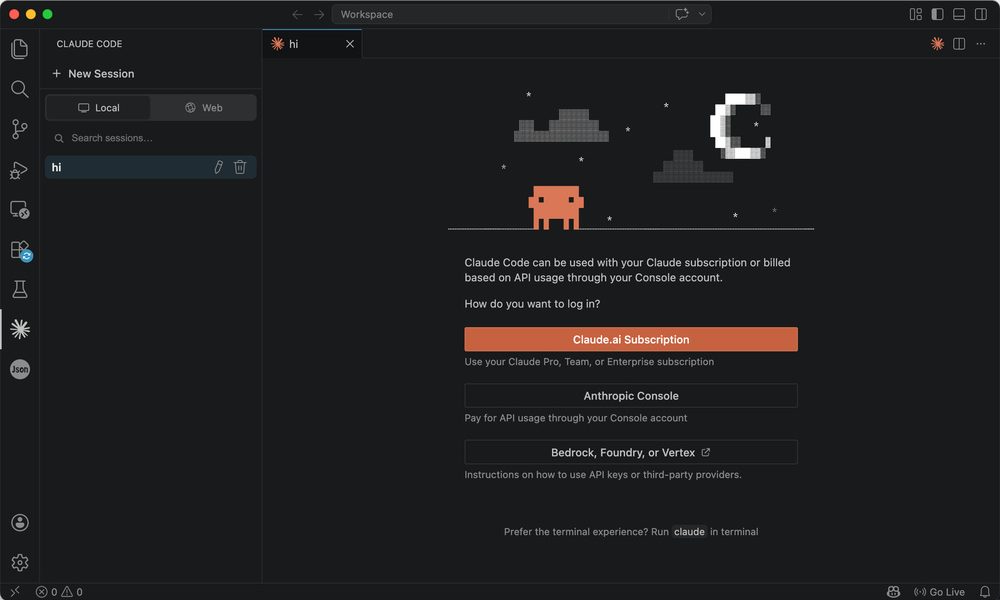
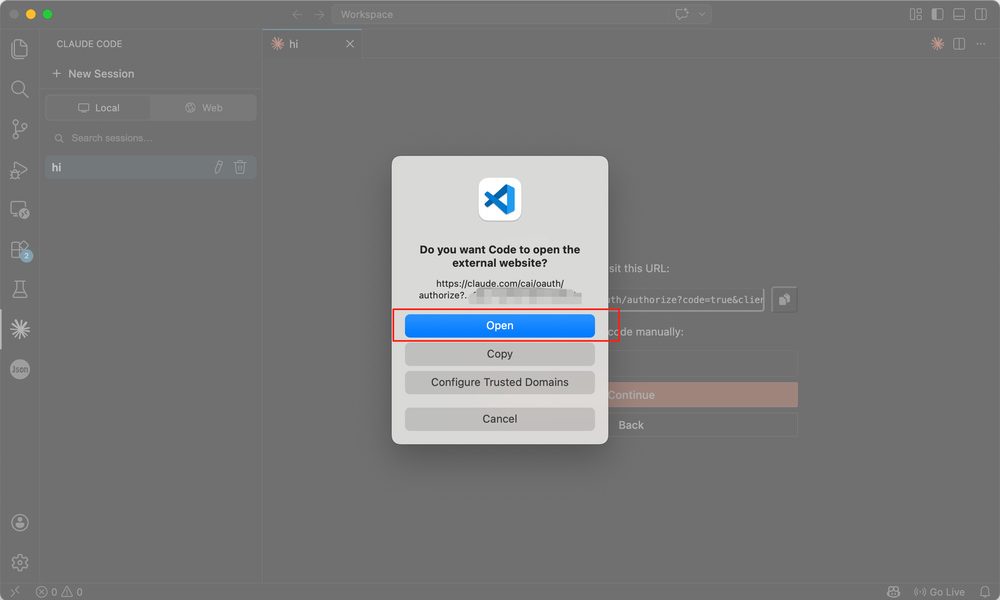
When prompted, choose Open to continue in the browser.
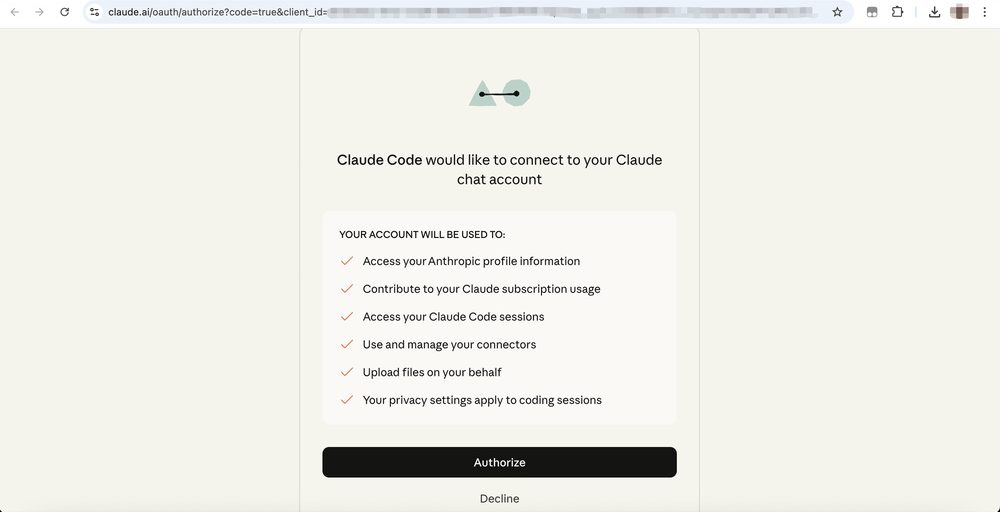
On the web page click Authorize to confirm.
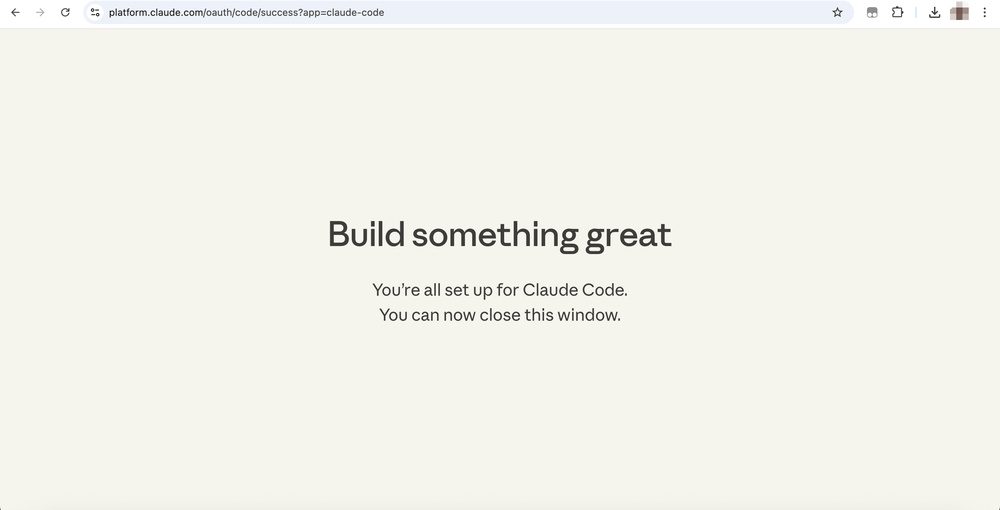
Back in Visual Studio Code the extension should show a signed-in state; use Claude Code from the sidebar or panel.
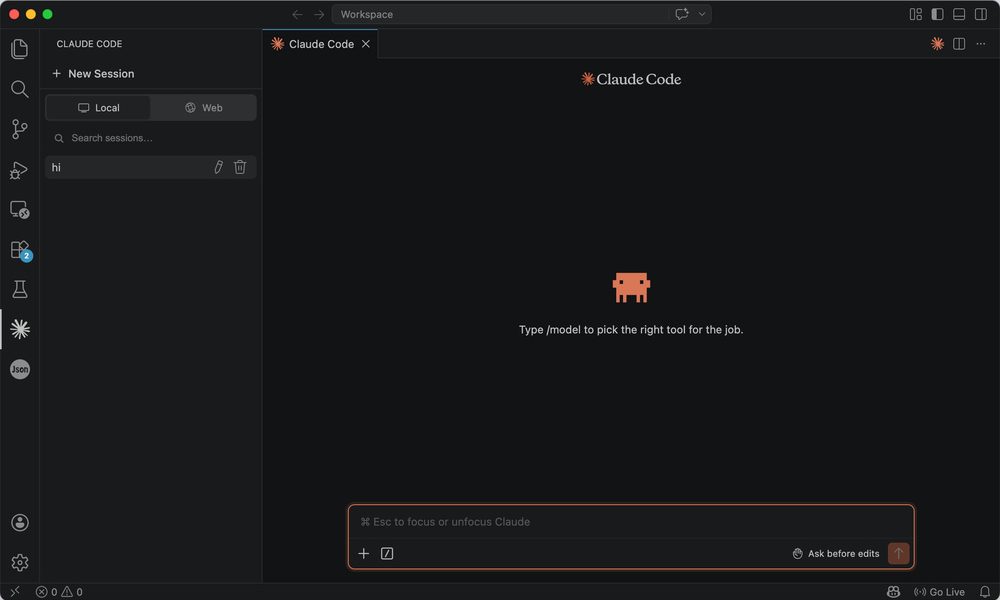
Part 2: A Simple Example
This prompt asks the extension to create news_task under project, gather five recent news items (title, source, date, link) from roughly the last three days, and write news.md, without generating or running extra scripts, only built-in capabilities. Adapt paths and output rules for your own work.
Create a new subfolder under the @project directory called "news_task".

In this folder, perform the following task using only your built-in capabilities:

- Search for news from the past 3 days
- Select a reasonable set of recent and relevant articles
- Extract for each article:
  - title
  - source
  - published date
  - URL

Output requirements:
- Save the results as a file named "news.md" inside the "news_task" folder

Constraints:
- Do not generate or run any code
- Do not create scripts; directly produce the final output file
- Ensure the data is from the last 3 days only
- Keep the structure simple and clear
- Search for 5 news articles only

Also briefly describe what you created.
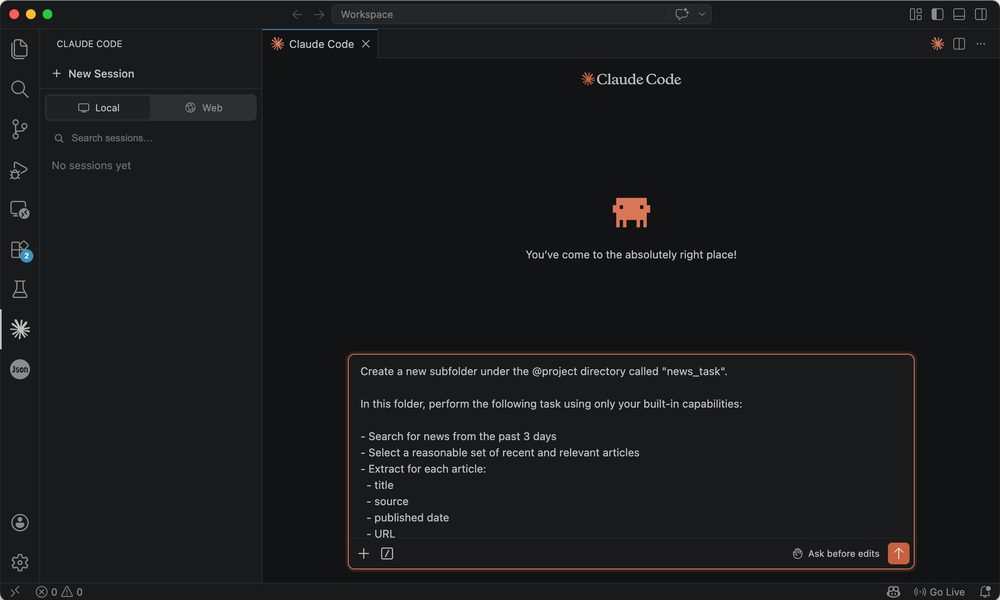
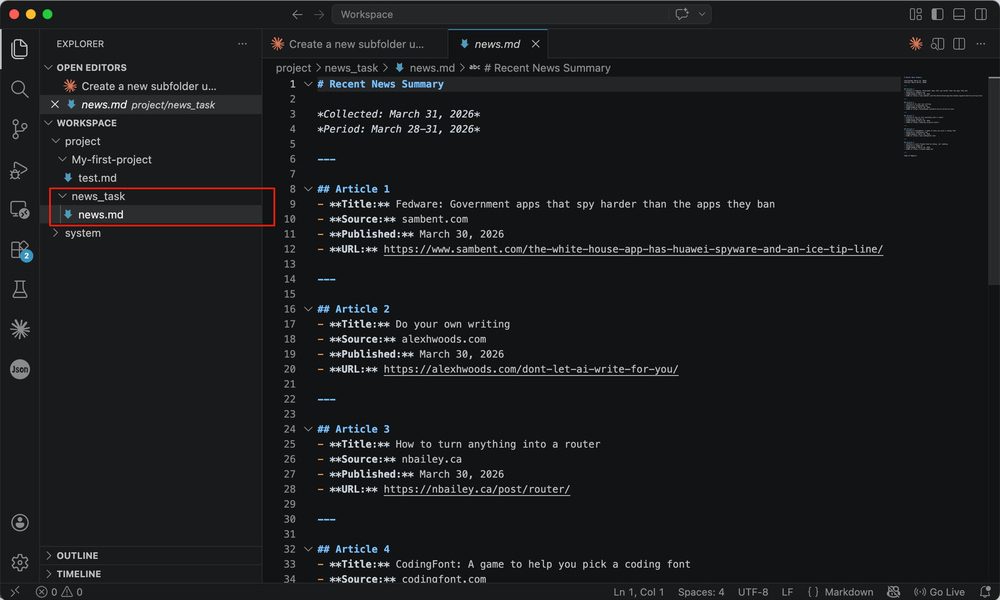
When it finishes you should see news_task under project with news.md inside. Open it to review entries (results depend on whether the model has working retrieval; if it fails, narrow the window or supply links yourself).
Part 3: Tips
Fewer Permission Prompts
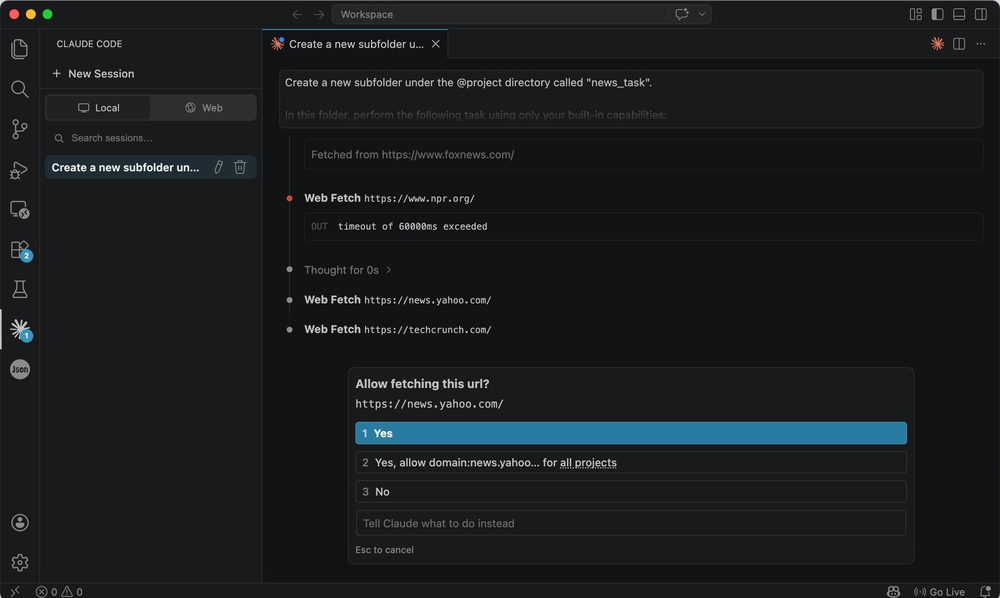
By default the extension may ask for confirmation often, which interrupts flow.
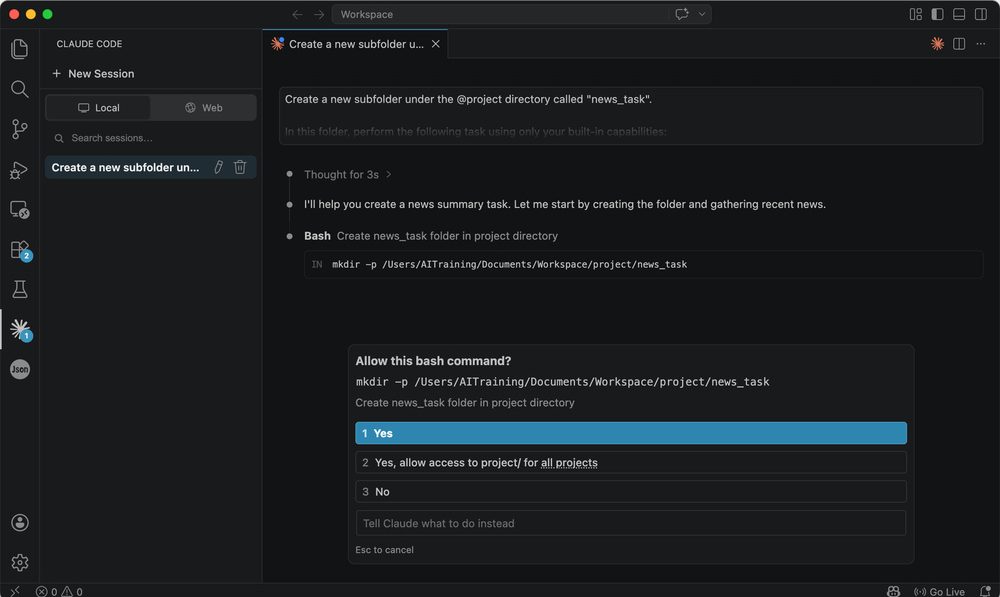
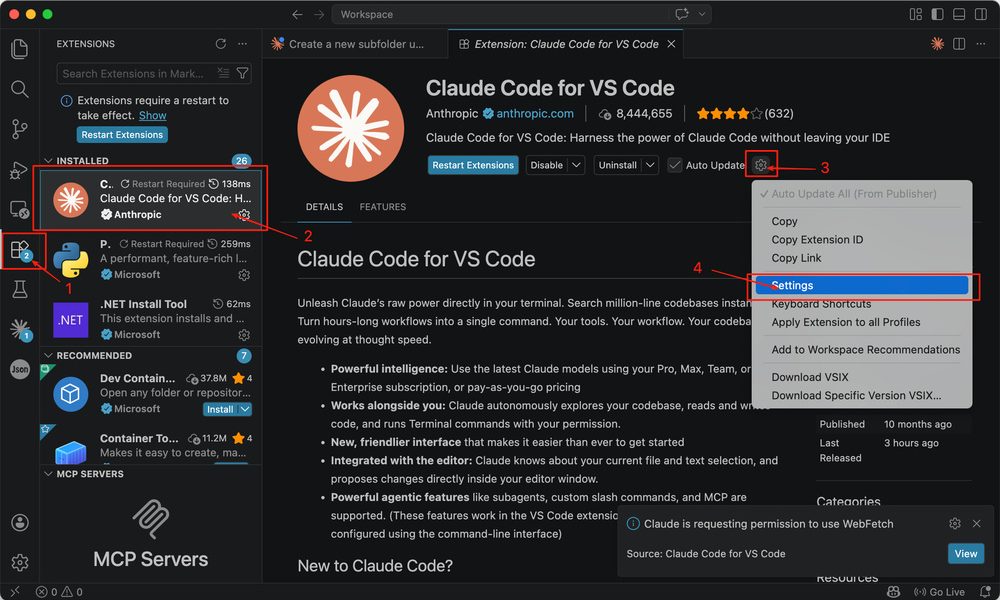
In the Extensions view open Claude Code for Visual Studio Code → gear Settings.
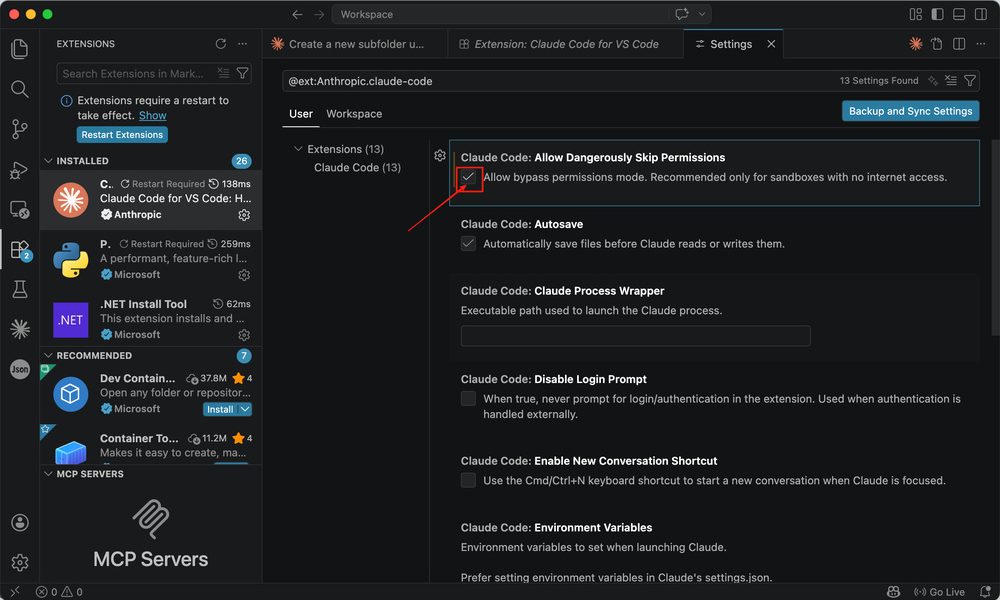
Enable Allow Dangerously Skip Permissions (exact label may vary by version).
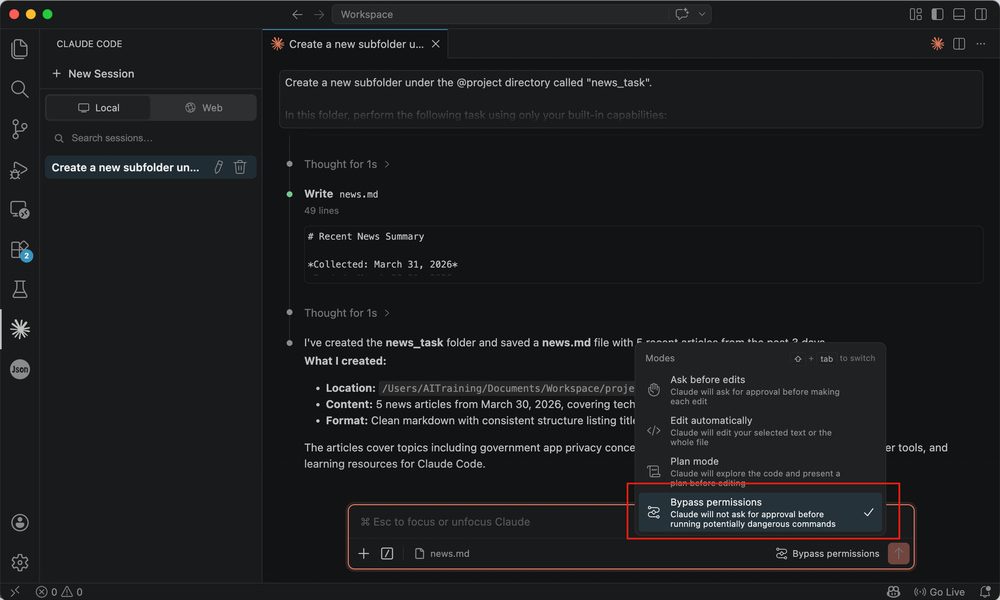
In the side panel you can use a mode such as Bypass permissions to reduce step-by-step approvals.
Warning: the assistant may run terminal and file operations more aggressively within the granted boundary, risk of mistakes or abuse. Use only on trusted projects and personal machines, and turn it off when done.
Point at Files
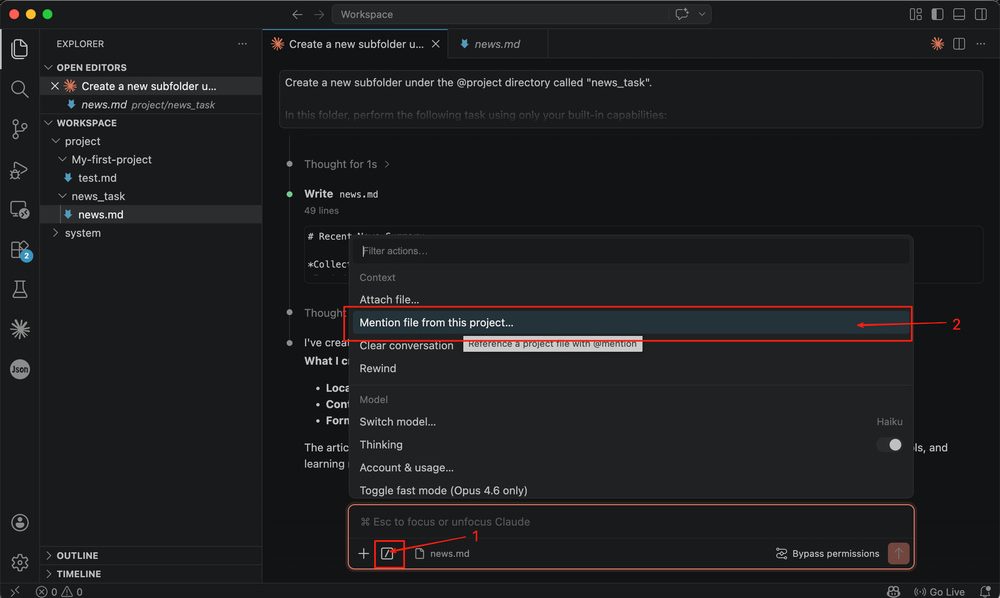
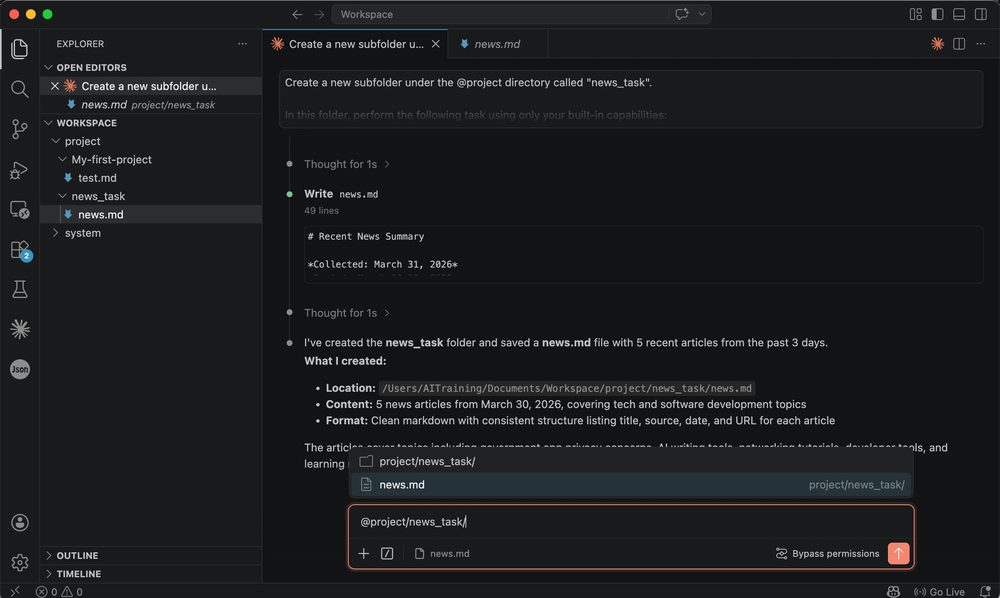
To answer or edit a specific repo file, use the tool menu → Mention file from this project, then arrow keys and Tab to pick the file.
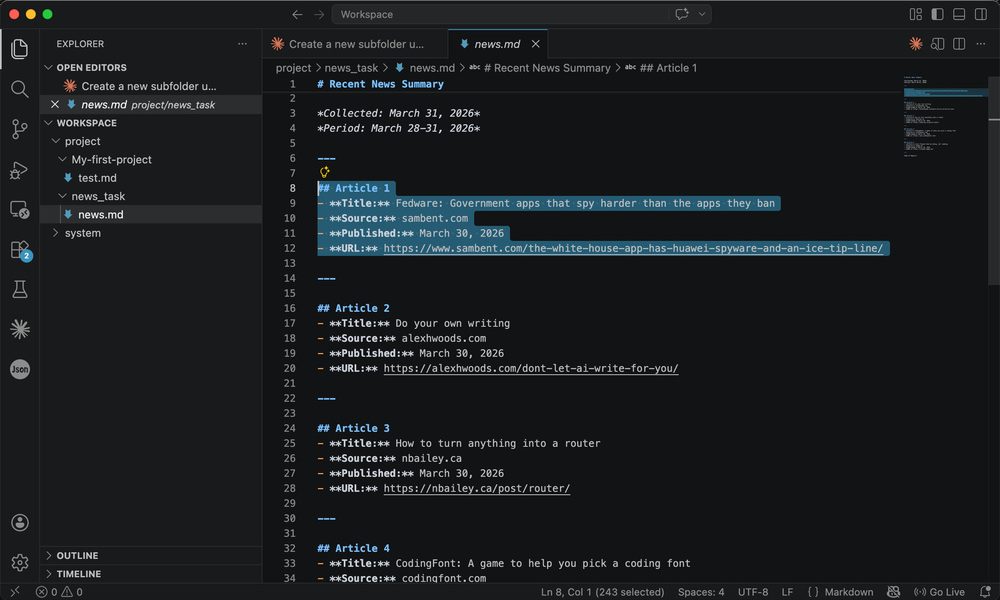
For a smaller slice of context, open the file in Visual Studio Code and select a range.
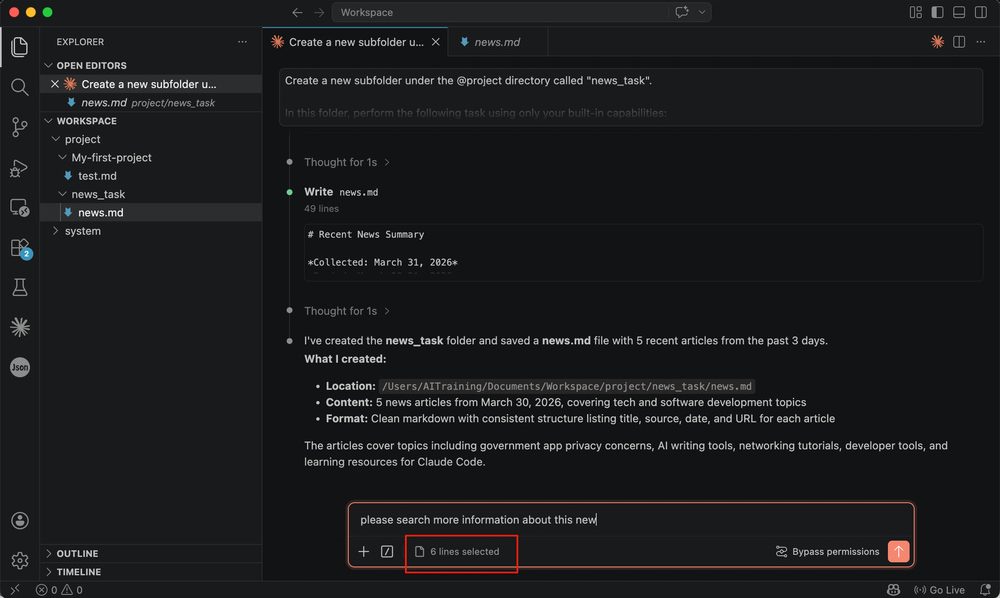
When you return to the side panel it may show selected line count (e.g. 6 lines selected). Instructions then focus on that selection.
Part 4: Remote Control
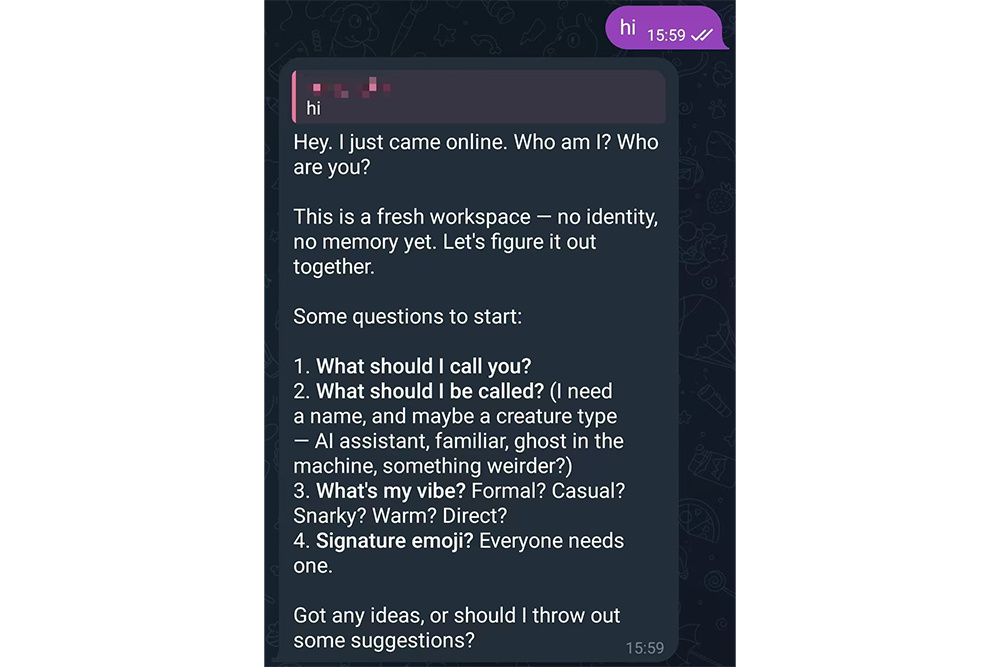
The extension can also accept messages from bots or HTTP callbacks (often labeled Telegram, Discord, Webhook, etc.). After setup you can send commands from a phone or tablet where you are signed in; the local client executes and replies, mobile use under your own control. For supported channels and steps see https://code.claude.com/docs/en/channels.
From | Tricontinental: Institute for Social Research via This RSS Feed.